
Editorialist
Editorialist turns outside feedback and author notes into controlled revision workflows inside Obsidian.
It is for writers who get notes from human editors, beta readers, or AI and want to work through those notes without losing control of the manuscript. The Ed side panel has six modes: Today, Line edits, Pending edits, Editorialisms, Editor engagement, and Author planner. Keep editorial commitments and personal goals visible, schedule the work, then resolve feedback in its source workflow.
The plugin does not rewrite your prose on import. Line edits, memos, author questions, and pending-edit notes stay reviewable until you decide what to do with them. Any passage can be archived to a per-scene cut file — from the editor’s right-click menu, the suggestion toolbar, or the command palette — and finished passes update revision history, contributor stats, and per-scene progress.
Watch the walkthrough: Turn Your Editor’s Notes Into a Revision Schedule (Volume 9 on the Radial Timeline YouTube channel).
Feedback and planning
Section titled “Feedback and planning”Working from an editor’s Word file needs no AI at all. Their tracked changes and comments come in directly: each change arrives as a line edit to accept or reject, with their comments beside it. When you are done, your replies and your reasons for the changes you kept go back into a copy of their Word file. Working with a Copy Editor walks the round trip step by step. Other feedback arrives in Editorialist’s format, packaged by an AI: the AI’s own review, or a human editor’s or beta reader’s notes converted with the instructions for AI. You choose the AI and paste its formatted response into Editorialist. The plugin makes no network calls and holds no API keys.
The planners work locally without AI. Editor Engagement records agreed dates, the documents you send, tasks, shared milestones, and activity history for the active book. Author Planner schedules your own writing goals across the vault.
Radial Timeline adds book context and scene IDs, and can optionally share publishing-stage target dates with author goals. Editorialist also works independently.
What It Helps With
Section titled “What It Helps With”- Turning AI, editor, or beta-reader feedback into reviewable suggestions, including an editor’s Word file with tracked changes.
- Walking a revision pass scene by scene instead of managing loose notes.
- Answering your editor: replies to their comments and your reasons for changes you kept, written back into their own Word file.
- Keeping every manuscript change explicit and reversible during the session.
- Tracking accepted suggestions and revision progress, and seeing which readers, editors, and AI models give the most useful feedback.
- Keeping structural guidance separate from line-level edits through Editorialisms.
- Scheduling all of it against a deadline and seeing progress across the whole book.
Standard Review Operations
Section titled “Standard Review Operations”Line edits supports a full set of scene-level editorial moves:
| Operation | What it lets you do |
|---|---|
| Edit | Review a specific suggested change against the original passage. |
| Move | Relocate a passage before or after a named destination anchor. |
| Cut | Remove a passage, with optional backup to the scene’s cut file first. |
| Condense | Tighten a passage between two anchors into a shorter version. |
| Expand | Develop, slow down, or decompress a beat with finished prose or advisory guidance. |
| Memo | Keep general thoughts, strengths, issues, or scene notes beside the pass without changing prose. |
Six panel modes
Section titled “Six panel modes”Use the view name beside the Ed logo to switch modes. Book-scoped modes use the active-book header and Import. Author planner shows Across your vault and Add goal. Today covers all your books and your writing goals together.
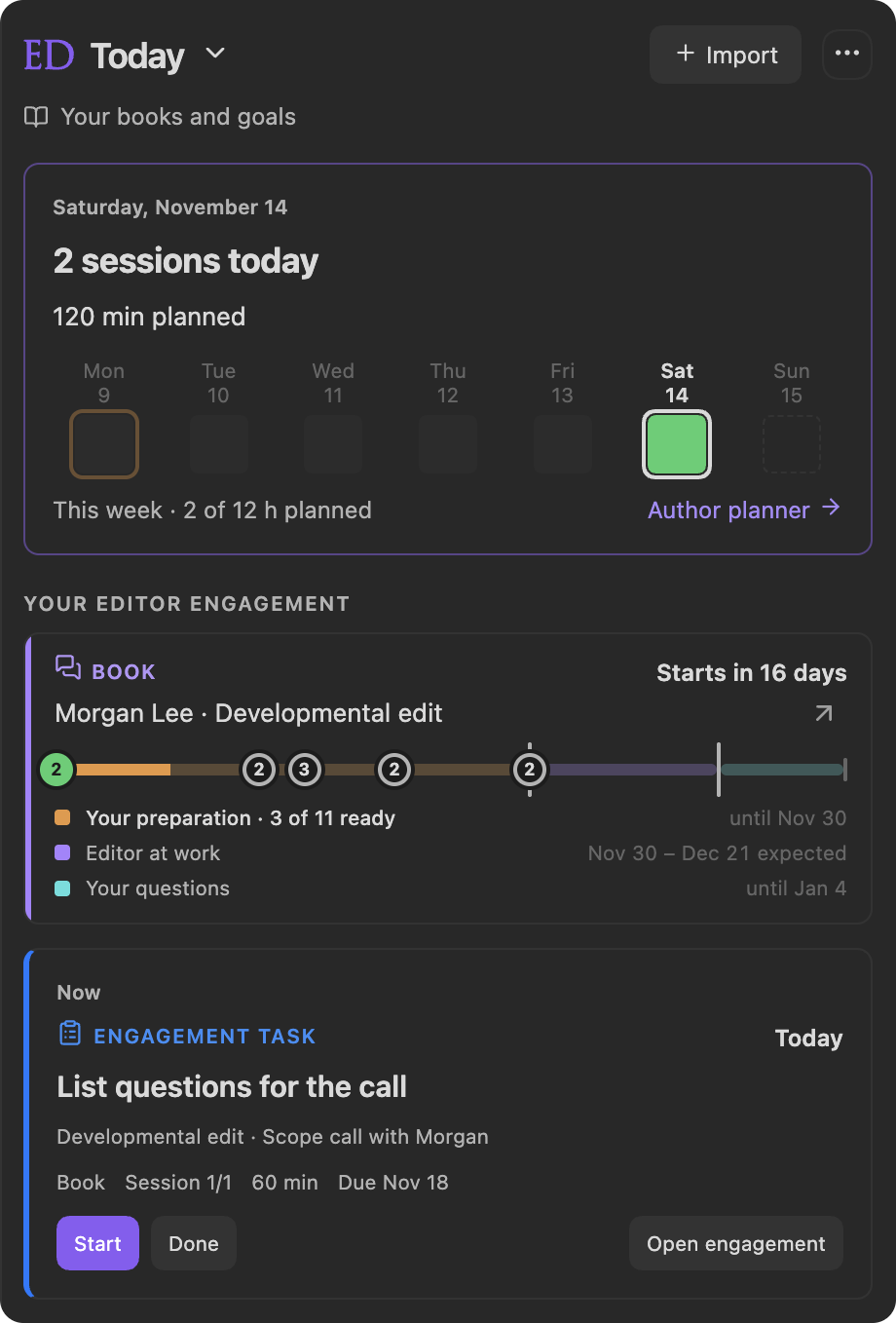
| Mode | Use it for |
|---|---|
| Today | The session to do now, with Start, Done, and a button to where it is set up: Open engagement for an engagement task, Edit goal for a writing goal, Open in plan for other work. Then the rest of today and the next few sessions coming up, across all your books and your writing goals. Each session names its book, and Start on another book’s session switches to that book. Sessions left from an earlier day come first, marked in red, and an upcoming session can be moved to today. Work with a deadline shows it, with its aim date when the deadline is your editor’s, and once the aim has passed the session to do now shows how much of your cushion is left. Your goals lists the goals under way, with the words written today for a word-count goal, and Today warns when the day’s sessions need more time than you have. Each editor engagement stays in view from setup until your question window closes, with its countdown and engagement bar, and the active book’s edit grid comes last. The ribbon icon opens Today, and the Ed panel shows it the first time Obsidian starts each day. |
| Line edits | Imported review batches: scene-level edits such as expand, condense, cut, move, and line edits, plus %%query: question%% responses and scene memos. Each batch is a review block appended to the scene, worked through, then cleaned away. Each scene can carry multiple batches from different manuscript shares or review passes. |
| Pending edits | The notes in each scene’s Pending Edits property (the revision notes you keep with Radial Timeline, including Inquiry follow-ups), walked scene by scene across the active book. |
| Editorialisms | A long-form checklist of directives pinned to the passages they concern, kept permanently as its own document: structural guidance, theme/subplot notes, and general feedback with no line edits. Record decisions or questions on directives and hand them to AI. |
| Editor engagement | Record your editor’s agreed dates, the documents you send, tasks, milestones, and history. Schedule revision work and see progress across the whole book. |
| Author planner | Set vault-wide writing goals with completion descriptions, start and target dates with a countdown, optional word counts, optional document links, and capacity scheduling. |
Alongside these, the Contributor directory (Settings → Contributors) shows which readers, editors, and AI models give the most useful feedback. The Line edits view’s How Editorialist works section sums up the same four workflows: imported review batches, Editorialisms, pending edits, and the contributor directory.
What You Work With
Section titled “What You Work With”| Object | What you get | When you get it | Where it lives |
|---|---|---|---|
| Review batch | Line edits, cuts, moves, condenses, expands, and memos: an AI’s formatted response, or an editor’s Word file with tracked changes | After you send the instructions for AI and manuscript text to an AI, ask an AI to convert human notes, or choose your editor’s Word file | On your clipboard, or in the Word file, until you import it |
| Review block | The imported part of a review batch for one scene | When you import a review batch through the launcher | Appended to the bottom of each targeted scene note until you clean it away |
| Editorialism | A structural checklist or manuscript-level directive set | When a reviewer gives broad guidance that should be worked over time | A separate markdown file under Editorialist/<Book>/, kept permanently |
| Editor engagement | Dates, documents and their sends, tasks, milestones, and an activity record | When you create an engagement for the active book | Plugin data; optional archived references in the vault |
| Author goal | A writing commitment with your own completion definition and target date | When you add a goal in Author planner | Vault-wide plugin data; its linked document stays in the vault |
| Editorial delivery | One editor’s handoff, with attribution, received date, return deadline, and links to feedback | After importing and linking its sources | Plugin data for the book |
| Planning session | A dated or unscheduled task with an effort range | When you add work or apply a draft schedule | Plugin data, linked to the original feedback or personal goal |
| Response to your editor | Your replies to an editor’s comments and your reasons for changes you kept | When you answer a pass from a person | A Word file in Editorialist/Responses: a copy of their file with your replies, or a separate letter |
| Pending edit | A note-to-self or Inquiry follow-up to review later | When a line is added to a scene’s Pending Edits property, by you or by Radial Timeline | The scene’s Pending Edits property, read across the active book and shown in Pending edits mode |
Core Workflow
Section titled “Core Workflow”- Copy the instructions for AI from the review launcher — they include the format specification and your book’s scene IDs, or its note names where notes have no IDs.
- Get suggestions. Paste the instructions into your AI conversation along with the prose. For human feedback, collect your reviewer’s notes in any form — a photo of a marked-up page, a document, an email — and have an AI shape them into a batch using the same instructions. A Word file with tracked changes needs no AI: the launcher reads it directly.
- Import the batch through the launcher; Editorialist appends review blocks to the bottom of the targeted scene notes.
- Work through the pass — accept, reject, rewrite, or defer each suggestion.
- Finish. Per-scene progress, contributor stats, and revision history update as each pass completes.
To schedule everything at once, open Editor engagement → Schedule (or the schedule shown before you create an engagement) and choose Auto-plan; it spreads every open batch, directive, and pending edit across your working days. For one editor’s handoff, group its imported batches and Editorialisms into an Editorial delivery, then choose Plan this delivery. Review the draft before applying it; priorities and estimates are editable. See Revision Plan.
| Page | What’s there |
|---|---|
| Getting Started | Commands and your first review pass |
| Working with a Copy Editor | The Word round trip, step by step: send the manuscript, bring in tracked changes, decide, and save your replies in their file |
| Editor Engagement | Agreed dates, editor return, documents and sends, milestones, and activity history |
| Author Planner | Personal goals, target dates, linked documents, and optional RT stage dates |
| Revision Scheduling | Progress across the book, priorities, capacity, auto-planning, and delivery tracking |
| Line Edits | The main working surface — sessions, the suggestion toolbar, statuses |
| Pending Edits | The active-book queue for author notes and Inquiry follow-ups |
| Editorialisms Panel | Structural guidance documents and the checklist workflow |
| Importing Reviews | Review batches, review blocks, and Editorialism files |
| Settings Reference | All three settings tabs: Core, Contributors, Configuration |
| Radial Timeline Integration | What the companion plugin adds |
License
Section titled “License”Source-available, non-commercial software license. Free for personal, educational, and professional creative work — including manuscripts and other commercial creative output produced with the plugin. Commercial use of the software itself, redistribution, and forks for public distribution require written permission. See LICENSE for full terms.
Headings set in Kalice, Claude Type, designed by Margot Lévêque.