
Editor Engagement
Keep an editor’s agreed dates, the documents you send, your tasks, shared milestones, and activity history together for the active book. Run Open editor engagement, or choose Editor engagement from the panel’s mode selector. The view has three tabs: Overview, Schedule, and History. Open engagement in workspace, in the panel’s ⋯ menu, opens the same plan in a full workspace tab.
Create an engagement
Section titled “Create an engagement”- Choose Create engagement. Select an existing human contributor, or enter an editor’s name when no human profiles exist.
- Enter the engagement title and Agreed start date. The collaboration link, expected and actual return dates, and returned-feedback delivery are optional.
- Set Days for questions after return. Once you record the actual return date, the overview shows the questions due date.
When your editor’s feedback arrives and you import it, Editorialist links it to the engagement for you, as its Returned feedback. From then on the actual return date is the date that feedback was received, kept in one place: change it here or in Editorial deliveries and both show the new date. A return date you entered before the feedback arrived moves to the feedback when it links. 4. Save, then add your documents, tasks, and milestones. New engagements start with empty lists.
Click your editor’s name on the overview to open that contributor’s existing profile controls. If the saved profile becomes unavailable, relink it in Engagement details. AI contributors are excluded from the editor selector.
Overview
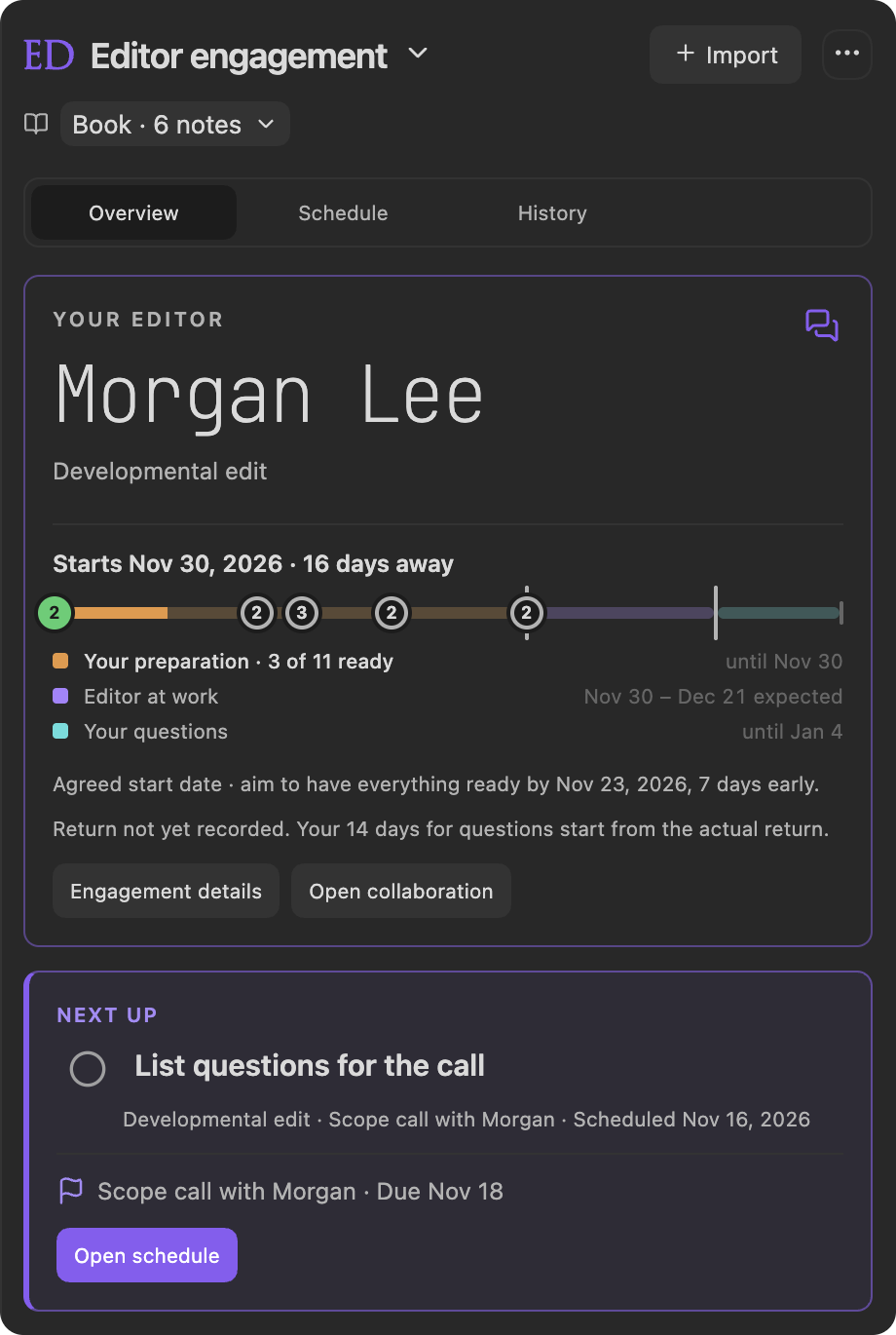
Section titled “Overview”The overview starts with your editor and the agreed start date, counted down in days (“9 days away”, “Today”, or “3 days ago”), and the day to aim for: what is due at the start should be ready your cushion of days early (see Deadlines and your cushion). Once that aim has passed, a bar shows how many days of the cushion are left. Until you record your editor’s return, the card reminds you that your days for questions start from the actual return; once it is recorded, it gives the return and the day your questions are due. Engagement details changes the dates and the editor, and Open collaboration opens your editor’s site when you have saved its link.
The engagement bar
Section titled “The engagement bar”Under the start date, one bar runs through the whole engagement in up to three stretches: Your preparation up to the agreed start, Editor at work until their return (expected, until you record it), and Your questions for the days after it. Each stretch fills up to today, and the one under way is drawn widest so its marks have room. Below the bar, each stretch is listed with its dates; your preparation says how much of it is ready, and the editor’s stretch and your questions say how many days are left.
Your documents and tasks sit on the bar on the day they are due, and so does a milestone with nothing due on it. Hover a mark to see what is due and whether it is sent or done; click it to go to its row below, opening its section if it was closed. Things due on the same day share one mark with a count. Click it to zoom the bar into that day: its targets spread out, finished ones first, with a list of each underneath, and Whole engagement zooms back out. Once everything due by the start is done and sent, the preparation stretch drops off and the bar is your editor’s. While anything is still open, it stays, with late marks in red.
Today shows the same bar for each engagement under Your editor engagement, from the day you set it up until your question window closes, with your editor’s name and the days to the start. Hover a mark there for a card with what is due, on which day, and whether it is done; click the bar, or the Open engagement button beside your editor’s name, to open the engagement.
Engagement notes
Section titled “Engagement notes”The chat icon in the corner of the editor’s card opens Engagement notes, the messages that set up the engagement: the quote, what is included, the dates you agreed. Choose Paste conversation and paste the thread, and you can look back at what was agreed without opening your editor’s site. A pasted message thread reads as a conversation, your editor’s messages on the left and yours on the right, each with its sender and time; anything else shows as you pasted it. Click the icon again to close the notes. The icon is highlighted once notes are saved.
Next up
Section titled “Next up”Next up names the book’s next session by the same rule Today uses: a session left from an earlier day or scheduled for today comes first, then the first session of the next scheduled day, then the first unscheduled item in your work queue. Today also counts your writing goals, so when a goal session comes first there, Today names it and this card still names the book’s. Click an engagement task’s circle and choose Done to finish it right there, or Open to reopen it; any other kind of work shows what it is, when it is scheduled, and an Open button. A session whose day has passed says Overdue and its day in red, with a red edge on the card, as Today and the work queue mark it. The card also shows the next open milestone, marked overdue in amber once its date passes, and Open schedule. When the queue is empty, it says so and points you to the Schedule tab.
Below it, Documents, Other tasks, and Milestones follow as sections you can collapse; each remembers whether you left it open or closed. Each thing appears once, with one status: a task is done or open, a document is sent or not, and a milestone is met by what is due on it. Quiet icon actions sit at the right of each row.
Documents
Section titled “Documents”Use Add document for what you prepare for your editor: a query letter, a synopsis, the manuscript. A document can link its working document in your vault, carry a Word limit, and have a Due date.
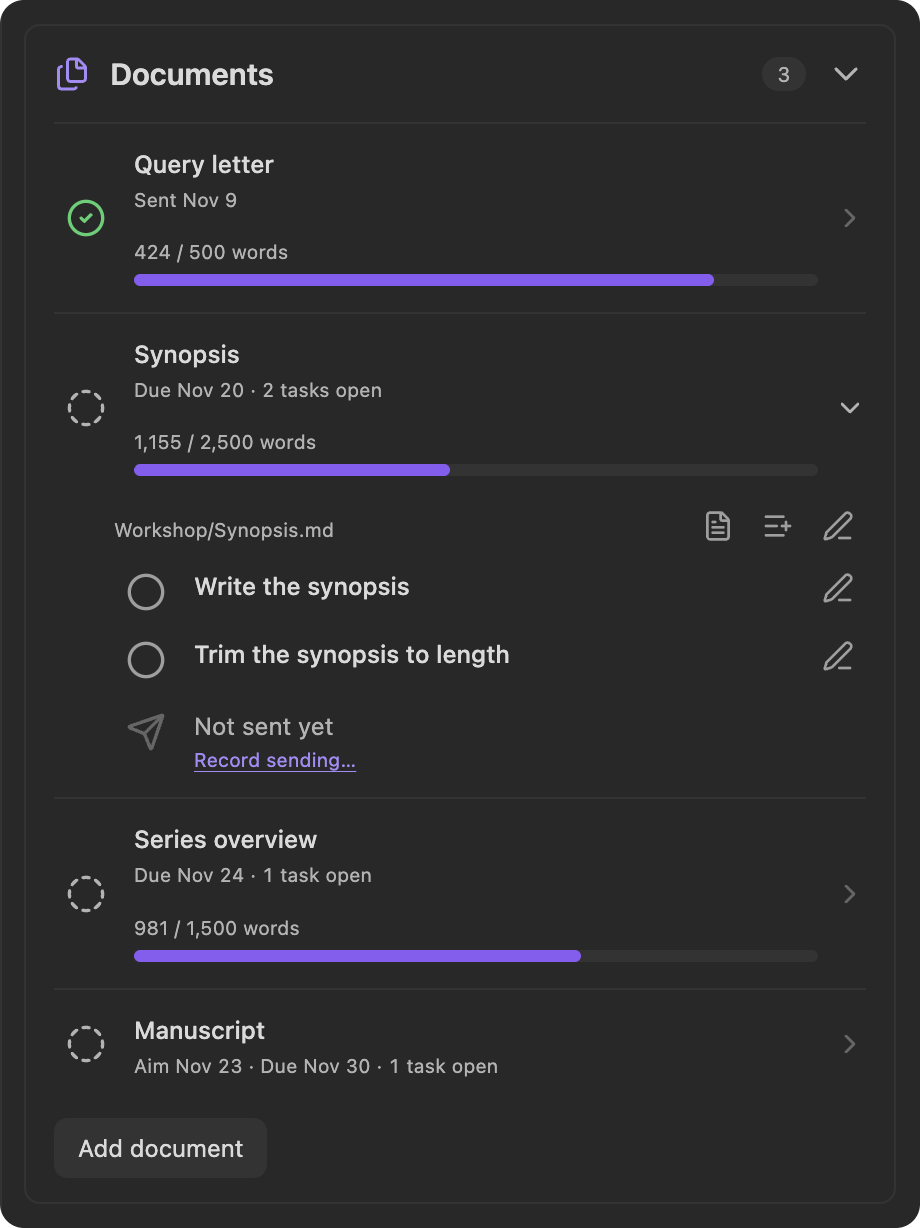
Each document is one line: a circle that turns into a green check once it is sent, its name, when it is due or the day it went out, how many of its tasks are still open, and its word count. Click the line to open the document: its working note, its tasks, each time it was sent, and the icons to open its working document, add a task, or edit it. One document is open at a time; opening another closes the first.
A word limit caps the working document, a query letter at 500 words, say. Wherever that document appears, a bar shows its current prose words against the limit and turns red once over; the count leaves out properties, headings, and hidden comments. Open working document on the document’s row, Open document in the schedule, or Start on Today opens it.
A document’s tasks sit inside it, under its title. Add one with the list icon in the open document, or choose the document in a task’s Document field. Tasks with no document are listed under Other tasks. Click a task’s circle and choose Done or Open; opening the menu changes nothing until you choose, and finished tasks are struck through.
Record sending a document
Section titled “Record sending a document”Every document says whether it has gone to your editor: its line gives the day it was sent, and inside it reads Not sent yet, or lists each send with its date and file. A document’s details include Sent to your editor on and File you sent, right beside its working document and word limit. The same fields appear in the form of every task for that document, so finishing the last task and recording the send happen in one place. Record sending… in an unsent document opens the document’s details at the send date.
Enter the day you sent it and the file you actually sent, which is usually not the working note but the Word file or PDF made from it: pick it from your vault, or Choose file… to bring one in from your computer. Editorialist keeps a copy of the file as it was, so later changes to it don’t change what you sent; for a file from your vault you can untick Keep a copy of this file as it is now. The file icon on the send opens the copy in Word or whichever app opens it.
Sent a revised version? Record another send… under a document’s sends adds a new one and keeps the earlier ones. Take back this send in a document’s details removes the latest send when you save, for one recorded by mistake; its kept copy stays in your vault. A send is your record of what you did; it does not confirm that your editor received it.
Due dates and milestones
Section titled “Due dates and milestones”A task or document can be due on a date of its own, when the engagement starts, or on a milestone. A task with no date of its own is due with its document. A date due when the engagement starts is a promise to your editor, so Editorialist aims to have it ready your cushion of days early, set under Finish early by in Schedule; your own dates are aimed at as set. The schedule’s own deadline stays independently editable, and the start date does not cut off work after an editor returns.
Milestones are dates you share with your editor, such as an approval or a call. They have no circle of their own. Make tasks and documents due on a milestone, and it reads Done once its tasks are done and its documents sent; until then it names what is still open, and turns red once its date passes. A milestone with nothing due on it reads Passed once its date has gone by. Moving a milestone’s date moves everything due on it.
Each item’s edit window has a delete button. Deleting a milestone leaves what was due on it due on the same day. Deleting a document keeps its tasks, under Other tasks, and keeps its sends in the activity records. Deleting a task also takes its sessions off the schedule.
Prepare and exchange files through your editor’s collaboration service, email, or other agreed channel. Editorialist tracks your commitments and records; it does not send files or certify a submission.
Schedule the work
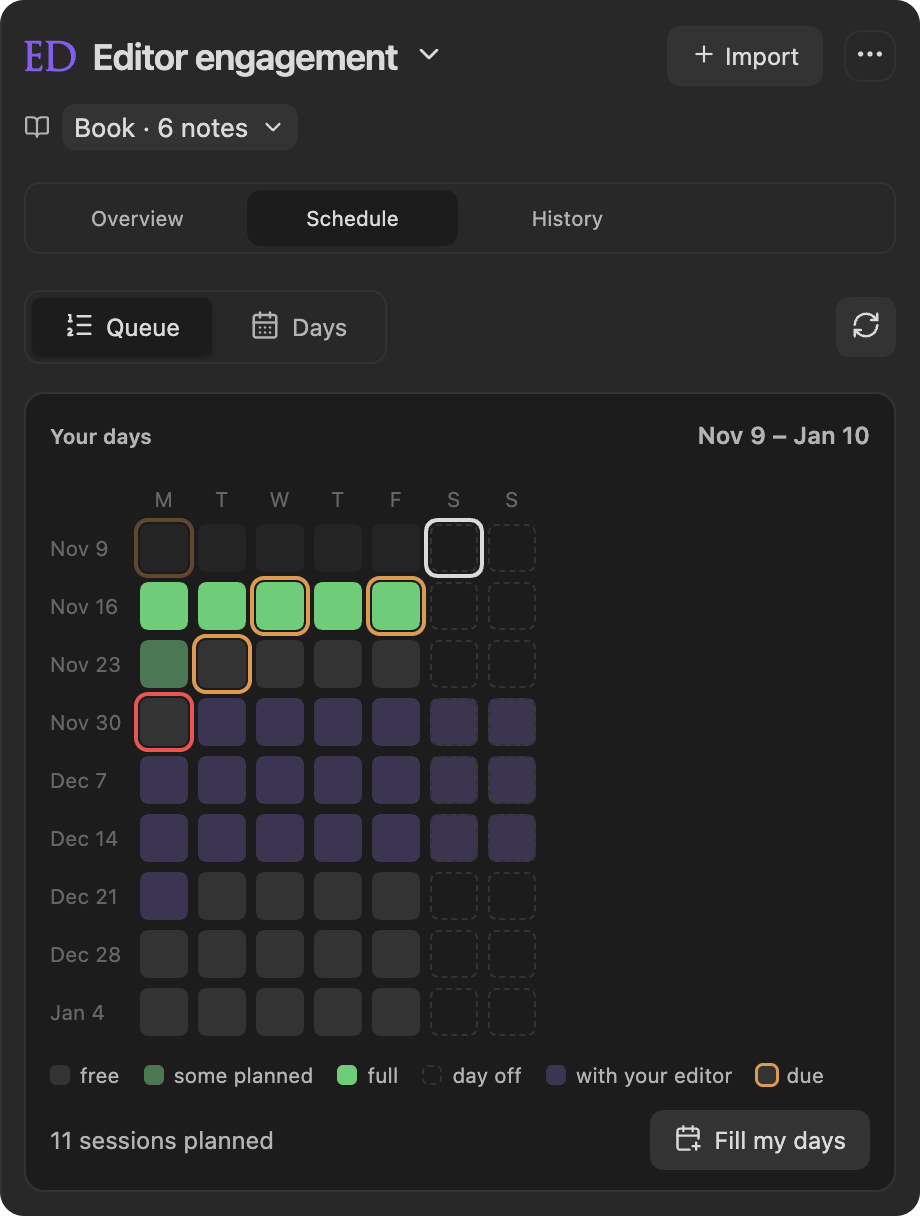
Section titled “Schedule the work”Open Schedule to see the book’s days as squares, a week to a row, as the Author Planner draws them for all your books: a square fills with the time planned that day against the time you set aside, turns red past it, and is tinted while the manuscript is with your editor; a red ring marks the agreed start. Hover a square for the day’s sessions, and click it to open that day in Days. Fill my days, under the squares, plans this engagement’s tasks together with your writing goals; see Author Planner. Below them are the ordered Queue, daily Days view, deadline, weekday capacity, and how many days early to finish work due to your editor. Personal tasks join imported review batches, Editorialism directives, and pending edits. Review a schedule preview before applying it, then resolve feedback in its own workflow. Marking a scheduled session Done records the planning session; finishing the feedback itself is separate.
See Revision Plan for estimates, automatic planning, delivery scheduling, prerequisites, and preserved dates.
History and optional archives
Section titled “History and optional archives”Choose Record activity to record something sent, something received, or a note. A date and description are required; the document, the file, and file names are optional. Sends you record in a document’s details appear here too, with the document’s name. Record events that have happened; put future work in the schedule. Records can be corrected or deleted later.
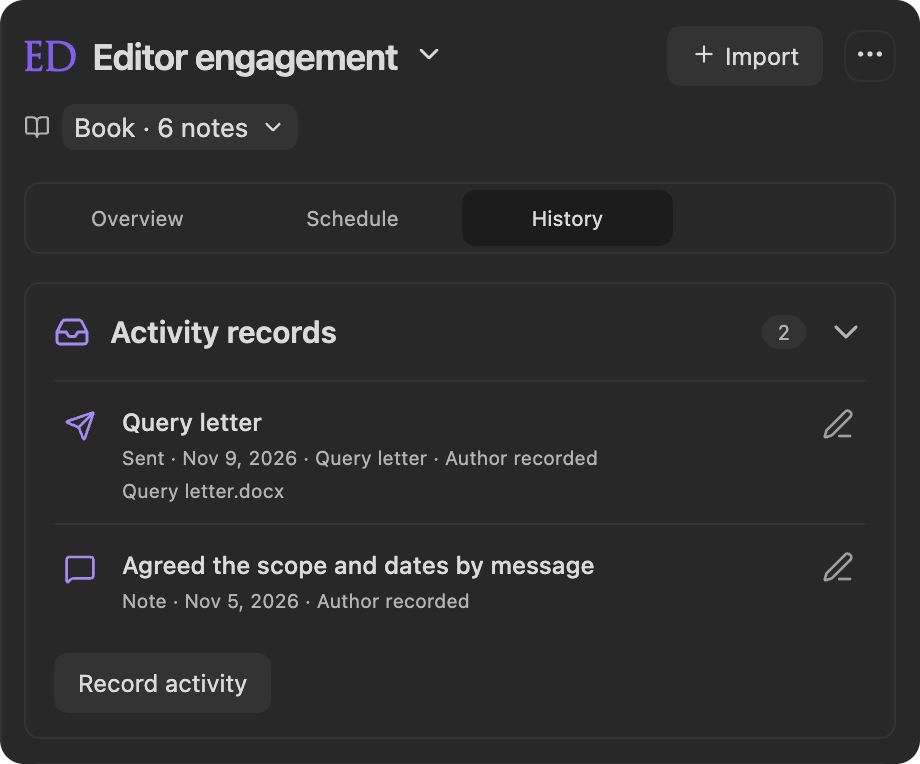
A kept copy holds one file, up to 64 MB, under Editorialist/Engagement history/, and stays independent of later changes to the original. Live references follow file renames; file names and kept copies preserve the record. Deleting a record keeps its copy.
Earlier preparation records and archived evidence remain readable in Preserved preparation history, if present. The section starts collapsed; each archived export and source copy is a link that opens it. They do not gate scheduling or new activity.
Upgrading from 3.2
Section titled “Upgrading from 3.2”Earlier versions gave every milestone and material its own Done circle, so one query letter could need a task, a milestone, and a material, each marked done separately. Now a milestone’s status comes from what is due on it, and a document’s from its sends. A material you had marked done shows as sent, “Marked done in an earlier version”, on the day you marked it, so finished work doesn’t come back as overdue; you can edit that send to add the date and file you actually sent. Delete any milestone you only made to give something a date: deleting it keeps that date on what was due on it. The Materials tab is now Documents. A task with no date of its own is now due with its document. In the schedule, Reserve minutes is replaced by Finish early by, which starts at 14 days.
If you sync your vault, update Editorialist on every device. Once 3.3 has saved your engagement, an earlier version won’t start on another device until you update it there; nothing is lost while it waits.
Upgrading from 2.0.0
Section titled “Upgrading from 2.0.0”The former Revision plan mode is now Editor engagement. Existing per-book plans, sessions, progress, and delivery links remain available. The command’s existing hotkey binding continues to use the same command ID. Author Planner holds a separate vault-wide plan for personal goals.
Engagement details, records, and scheduling live locally in plugin data. Source feedback stays in scene notes and Editorialism documents, and optional archived references stay in the vault.
Headings set in Kalice, Claude Type, designed by Margot Lévêque.