
Author Planner
Give your own writing goals a target date and room in your working week. Run Open author planner, or choose Author planner from the panel’s mode selector. This plan spans the vault and stays separate from each book’s Editor Engagement.
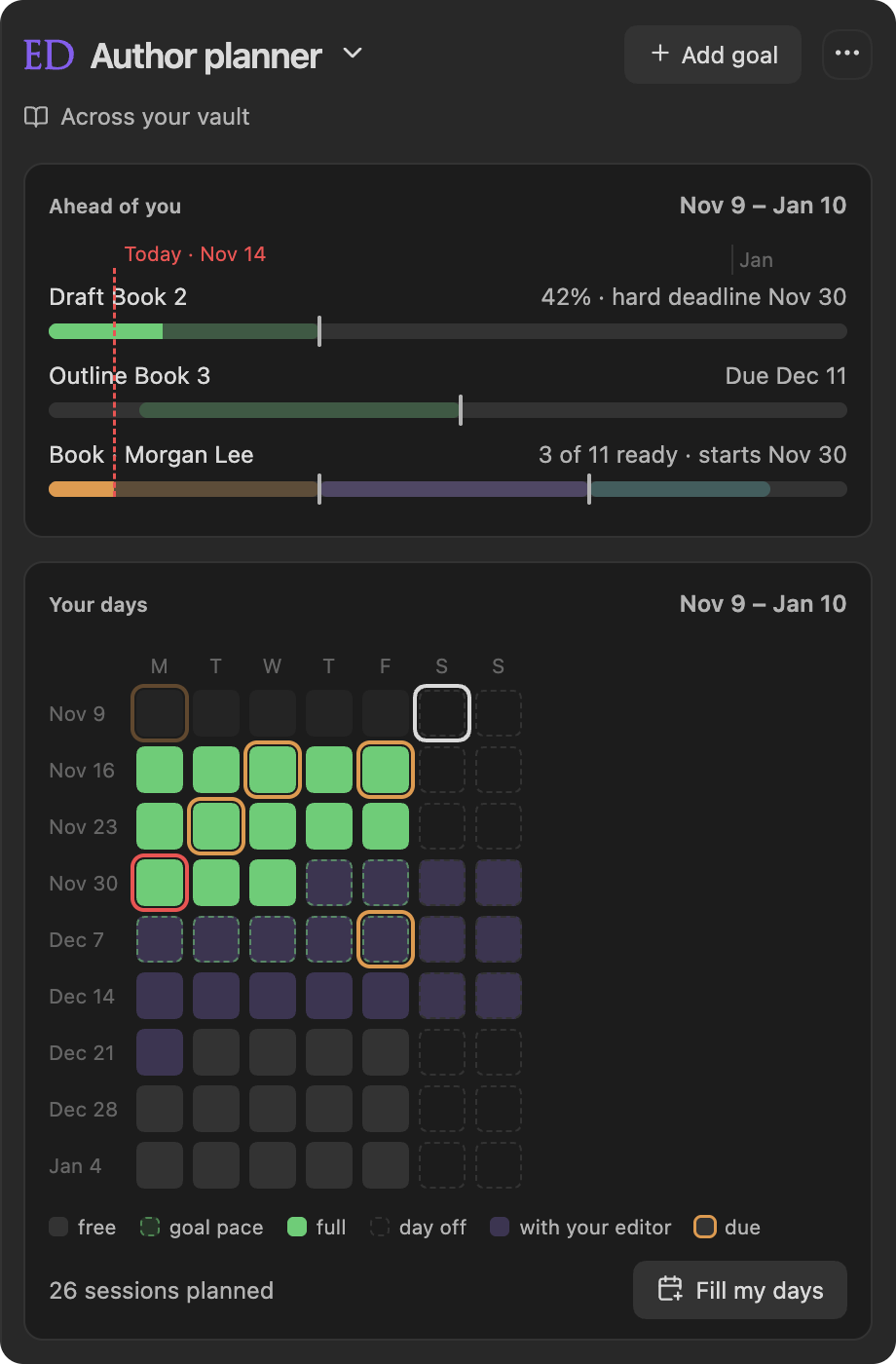
Add a writing goal
Section titled “Add a writing goal”- Choose Add goal. Under Goal, enter a Title, and under Done means describe finishing in your own terms: a revised chapter, a finished query letter, or another outcome.
- Under Dates, set a Target date. Optionally set a Start date, the day you plan to begin; it must fall on or before the target date. Check Hard deadline when scheduling must finish by that date.
- Under Book, keep Standalone goal and optionally add a Book label, or choose a Radial Timeline book (see below).
- Under Word count, optionally give the goal a number of words to write (see Word targets).
- More options holds a Linked document to open from the card and a low and high effort in minutes for scheduling. Most goals leave them empty.
- Save. Edit goal lets you change these details later.
Each goal card counts down to its date. Before a goal’s start date, it shows the days until you start and the length of the window; after that, the days left, plus the weeks when at least two weeks remain. A goal with a start date also shows a bar of how much of the time from start to deadline has passed. The bar measures time, not how much of the writing is done. It turns amber in the last 14 days and red when the goal is due today or past due, and a hard deadline’s date is shown in red.
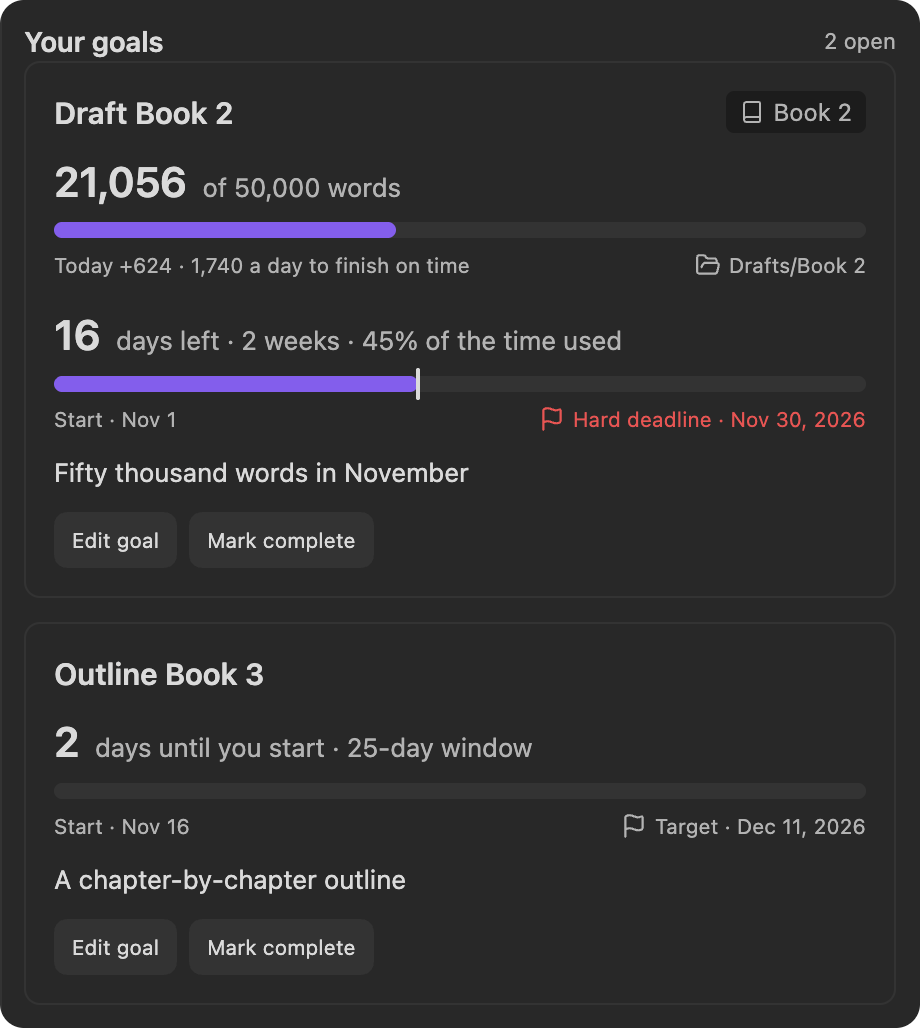
A document link opens the working file. Linking or editing it never completes the goal. Mark complete records your decision; Reopen goal brings it back. Remove goal removes that goal and its planned sessions while preserving the document.
Word targets
Section titled “Word targets”A goal can also count words, such as 50,000 words in November. In goal details, enter Words to write and choose a Folder to count. Every note in that folder and its subfolders counts. When the goal is linked to a Radial Timeline book, it counts the book’s source folder instead.
Starting count is filled in with the folder’s current total. Words written after that count toward the goal. If you already wrote some words for this goal before you set it up, lower the starting count by that amount. When the start date is still ahead, leave the field blank and the folder is counted on your start date.
The card shows the words written so far against the target, with a bar. Below it are the words written today and how many words a day finish the goal by its date. The count follows your writing as you type, and you don’t need to start a timer.
The count is the folder’s total, so cutting words lowers it, and moving a note into the folder raises it. Cut files saved by Editorialist are not counted. The day’s count starts the first time Obsidian is open that day. Reaching the target doesn’t complete the goal; Mark complete is still your decision.
Fill my days
Section titled “Fill my days”Fill my days, under the squares, plans your goals and what is due to your editor together, so the two never claim the same hour. It also opens from the Schedule tab of an editor engagement. It opens on the plan itself, already worked out, and Use this plan saves it. You don’t have to fill anything in: the hours are the ones you last set, and each piece of work comes with a time.
- A goal with a word count gets the words still to write at your Drafting rate, from Editorialist’s settings. 25,000 words at 750 an hour is 33.5 hours. The time falls as you write.
- An engagement task gets an hour, until you give it a time of your own.
- Work already planned keeps the time it was given, less any sessions you have marked done.
If a goal needs more time than your days hold before its due date, every day is used and Goal needs more time shows how much fits, in hours and words. Editor work with no free day is listed under Not enough time, with the hours you have free before its due date. To make it fit has buttons for each fix: Add hours, Reduce task time or Change what comes first. You can also change a due date in the engagement or goal.
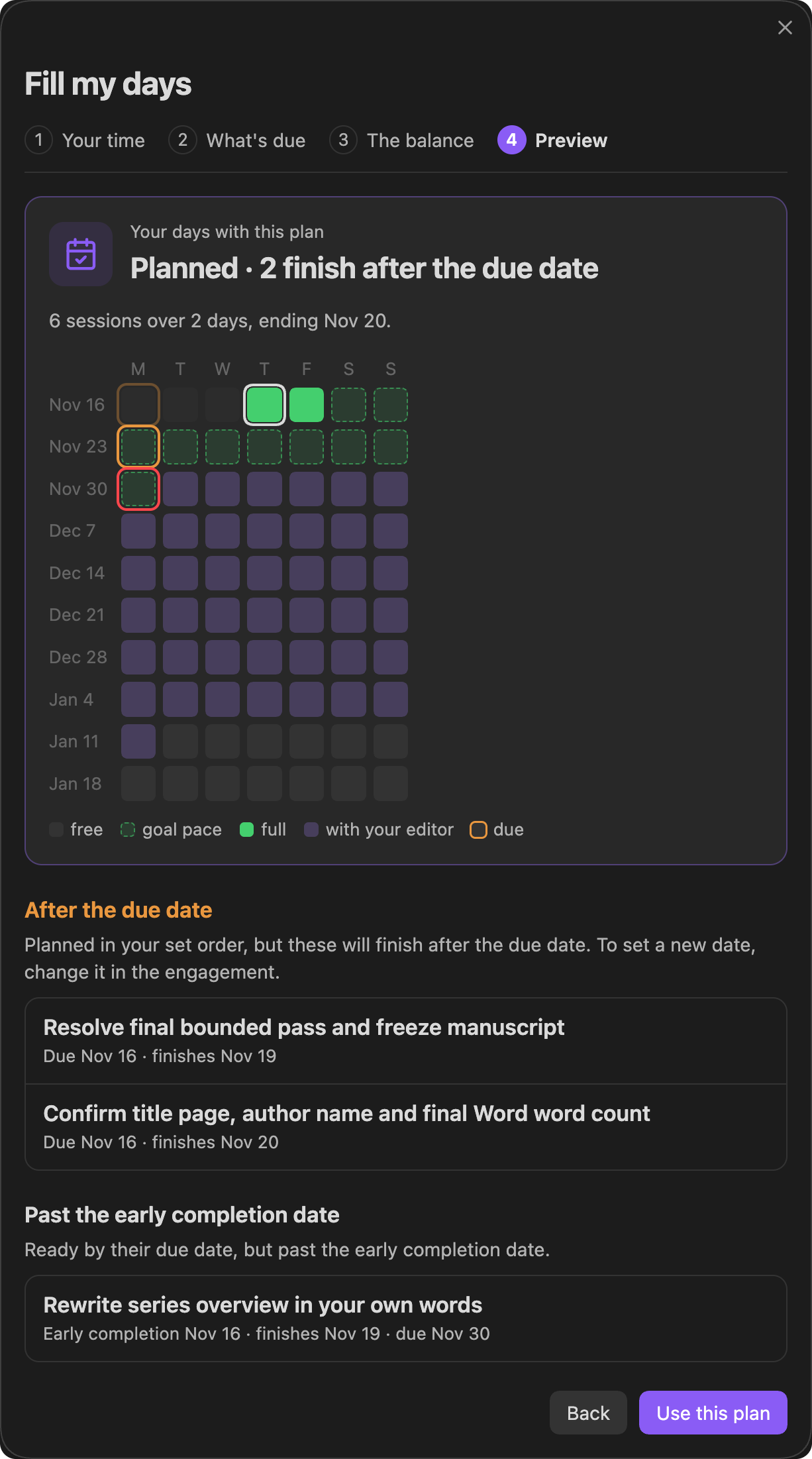
An engagement’s tasks are planned in your set order, each starting when the one before is done. If that takes a task past its due date, it is still planned and listed under After the due date, with the day it is due and the day it finishes. Due dates are never moved for you; to set a new one, change it in the engagement.
Your days are filled, not cut into blocks: each piece of work takes what is left of each day in turn, so no time goes unused and a piece of work has one session a day at most. A day’s leftover under a quarter of an hour is not given a session of its own.
The four steps above the plan change an answer in it. Click one to open it; nothing is saved until Use this plan.
- Your time. The hours you can give to writing work on each day of the week and the day to start on. Leave a day at 0 to keep it free. These are the same hours for every book and every goal: change them here, or in any schedule’s Deadline & capacity, and they change everywhere.
- What’s due. Every open engagement task and goal, planned already or not, with its date and the time it still needs. Change any time that looks wrong; it is kept with the task. Use the arrows beside an engagement’s tasks to put them in the order you’ll do them; the order is saved with the engagement. Everything listed is planned afresh, so it all fits together. To drop a piece of work, remove it from your goals or its engagement. Work with a session set to Keep this date stays where it is and is not listed.
- The balance. Shown when you have both goals and work due to an editor. What is due to your editor comes first unless you choose your writing goals, or Some of each, every day, which keeps a set number of minutes for your goals on each day they need them. Your choice is remembered, and Ahead of you lists the work that comes first at the top.
- Preview. Your days as squares with this plan, with the number of sessions and the last day. Editor work aims to finish by its early completion date, your cushion of days before the due date. Work that finishes later is listed under Past the early completion date.
Goals are planned to their own dates; the cushion kept before an editor’s deadline does not apply to them. A book’s feedback work, its review batches, Editorialism directives and pending edits, is planned from that book’s own schedule; Fill my days leaves those sessions where they are and plans around them.
Sessions, below your goals, lists what is planned as a Queue or by Days. Target dates influence ordering; hard deadlines constrain placement. Sessions for the same goal stay ordered, while unrelated goals can still be scheduled if another goal cannot fit. Work that does not fit remains visible as unscheduled.
Marking a session Done from its circle records work on that session. Use Mark complete on the goal when its outcome is achieved. Your goals and each book keep their own sessions, but they share one set of hours, and each planner leaves alone the time the others already hold. Today adds them up: when the day’s sessions need more time than you set aside for that day, it says so, so you can move some to another day.
Optional Radial Timeline target dates
Section titled “Optional Radial Timeline target dates”In goal details, under Book, choose a Radial Timeline book and its Stage: Zero draft, Author draft, House draft, or Press ready. You can choose any available Radial Timeline book, independently of the active book.
The goal shares that stage’s target date. Changing the goal’s date updates Radial Timeline; a date changed there appears here while the panel is open. Stage dates must retain their chronological order. If the stage date moves before the goal’s start date, the card says so in place of the countdown; edit the goal to choose a new start. Completing a goal records your outcome without changing the manuscript’s publishing status.
If RT, the linked book, or its stage date is unavailable, the card keeps its last synced date and shows the problem. Scheduling pauses for that linked goal until you reconnect, set the stage date, or unlink it. Standalone goals continue to work without RT. Removing a goal or unlinking it preserves the RT target date.
Storage
Section titled “Storage”Goals, sessions, and scheduling defaults are saved locally in Editorialist’s plugin data across the vault. Document links are optional. No AI, calendar account, or external scheduling service is required to use the planner.
Headings set in Kalice, Claude Type, designed by Margot Lévêque.