
Revision Plan
The Schedule section of Editor Engagement brings personal engagement tasks, pending edits, scene batches, Editorialism checklist items, and your responses to editors into one ordered work queue. Run Open editor engagement, then choose Schedule when an engagement exists. Without an engagement, the revision schedule remains directly available.
This page retains the scheduling reference and its original URL for existing links. For vault-wide personal writing goals, use Author Planner.
Progress across the book
Section titled “Progress across the book”The Progress across the book card leads the plan. It shows how much work is done and how much is still to go, with a bar, and how many items you finished today and in the last 7 days. Below that are separate totals for Line edits, Editorialisms, Notes (pending edits), and Responses. When your Editorialisms contain directives that ask you to choose something, Decisions shows how many you have made out of those needed. A recorded decision counts there rather than as done: the directive stays open until its passages are carried through.
Progress covers the whole book, not only the work in your plan. Finishing work anywhere counts as done on the day it happens: a batch whose suggestions are all decided or whose review blocks are cleaned away, a line removed from a scene’s Pending Edits property, a directive marked done. Totals run from the day tracking began, shown beside the card’s title, and work already finished before then is never claimed. An Editorialism you switch to inactive is set aside rather than counted as done, and work you reopen goes back to the to-go count. If a source fails to load, or an Editorialism has no book assigned, its work stays in the to-go count instead of being read as finished, and the rest of the book keeps moving. Progress updates whenever this planner or Today refreshes, so a batch you clean leaves Today without opening the planner.
With a deadline set, the card also gives the days left and about how many items a day you need to finish on time. After a few days it adds your average so far and flags the line when you are falling behind. When your plan holds fewer items than the book has open, the card says so and points you to Auto-plan.
The plan refreshes itself a few seconds after your sources change, waits while you are typing, and keeps your place in the panel. The refresh button at the top updates it immediately.
Build a plan
Section titled “Build a plan”- Set your schedule deadline, working minutes for each weekday, and Finish early by (days) in Deadline & capacity. Zero minutes means a day off. Your working minutes are the same for every book and for your goals in the Author Planner: change them in one place and they change everywhere. Finish early by starts at 14 days: work due to your editor is planned to be ready that many days before its deadline, so a slow week or a sick day doesn’t make you late.
- Bring in work. To take in every open item at once, use Auto-plan. To choose by hand, find work in Available work: search by scene or instruction, and filter by Notes, Line edits, Editorialisms, Responses, or delivery. Add items one at a time with +, or choose Add all N to the plan to add everything the current filter shows, with suggested estimates.
- Drag to prioritize, or use Move up and Move down in Schedule & options.
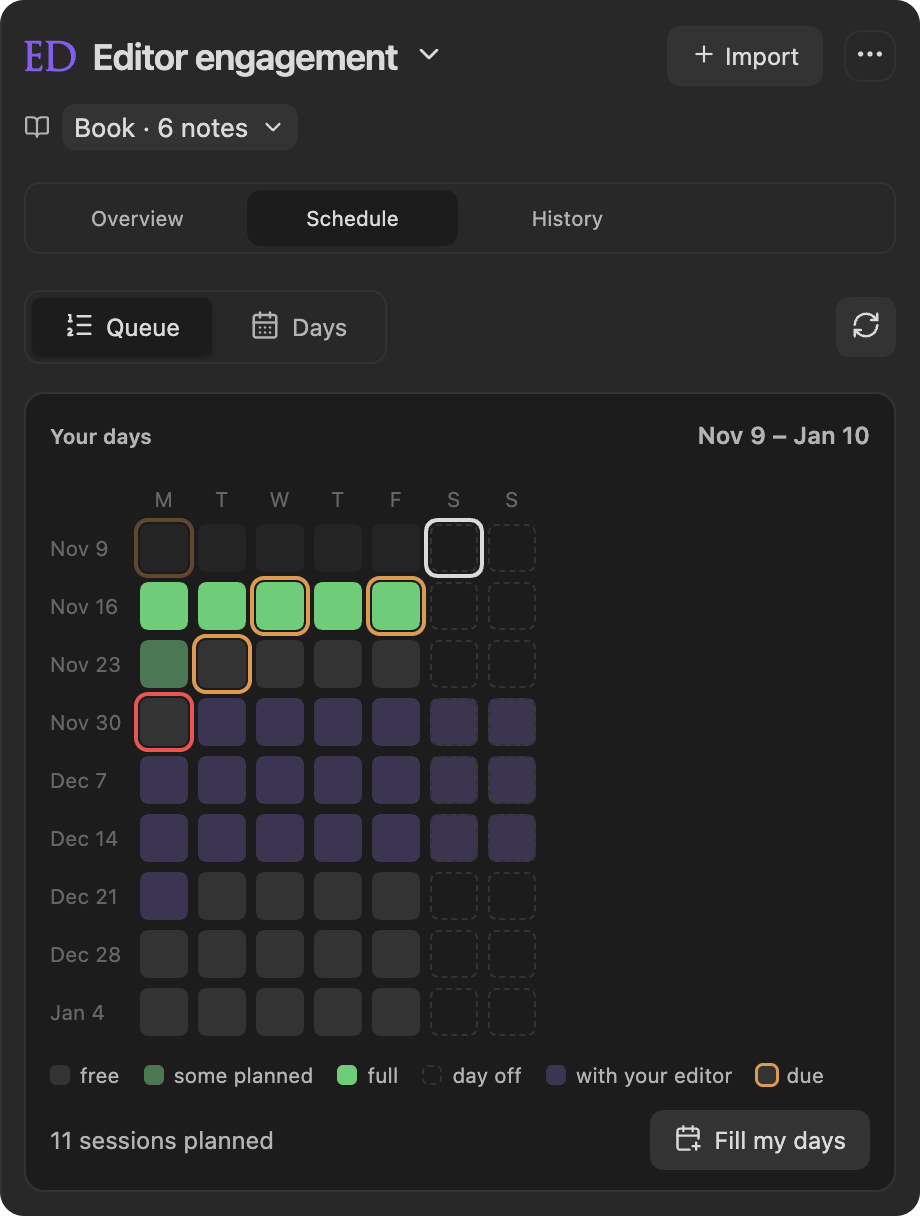
- Set a day and a low/high effort range. Switch between Queue and Days to review the order or daily workload; tasks can also be dragged onto a day.
A session still open past its day shows a red edge and an Overdue date chip wherever it sits in the queue, so a reordered queue keeps every missed day in view.
The forecast uses the high end of estimates and includes scheduled optional work in capacity. Unknown effort is never counted as zero. Missing sources, past dates, prerequisites, overloaded days, and delivery deadlines can all require attention, and so can sessions that fall inside your cushion. A forecast describes the selected work in your plan, not every unresolved note in the book; the progress card covers the whole book.
Deadlines and your cushion
Section titled “Deadlines and your cushion”Work is due on its own date: an editor’s return deadline, the day your engagement starts, a milestone, or a date you gave a task. Required work with no date of its own falls under your schedule deadline, and its card says so: Schedule deadline Oct 31.
A date your editor is waiting on, the engagement start or a return deadline, gets an aim date your cushion of days before it, and its card reads Aim Nov 20 · Due Dec 4. Your own dates, milestones and the tasks due on them have no cushion: they are aimed at as set. A session’s date line turns amber when its day falls inside the cushion, and red when it falls after the deadline. Once today passes the aim, the card shows a bar across the cushion instead, from the aim to the due date. It fills as the days go and turns red for the last fifth. Today and the engagement overview show the same bar.
Work a session
Section titled “Work a session”Each card in the queue shows its kind, title, context, and its date and estimate (dashed when not yet set). Click the circle beside its kind and choose Done to finish the session, or Open to reopen it; opening the menu changes nothing until you choose. At the right, Schedule & options opens the card’s scheduling controls; clicking the date or estimate opens them too. Batches, Editorialism directives, and pending edits also get Open source, which takes you to the underlying feedback. An engagement task that works on a document gets Open document, which opens that document.
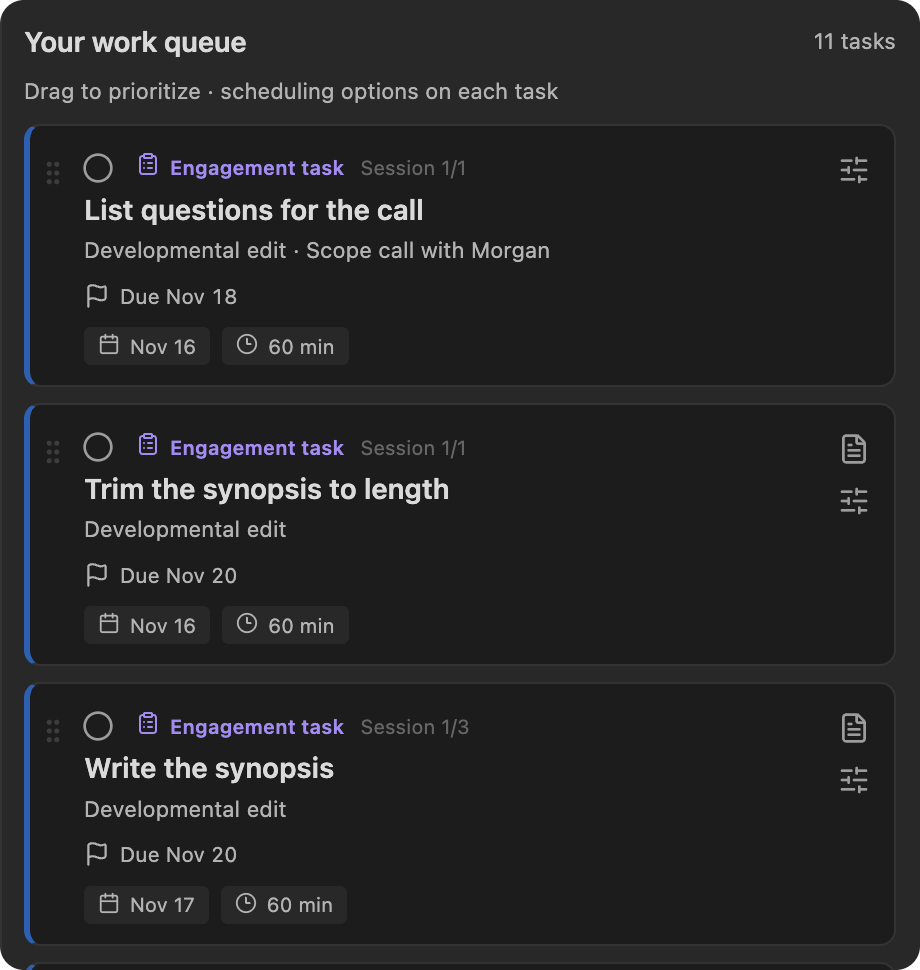
Marking a session Done completes only the planning session: it does not accept a batch suggestion, check off an Editorialism, or remove a Pending edit. Resolve those in their source workflow. Source completion can also make its planned work complete. A batch is complete once every suggestion in it is decided; its memos ride along. A batch holding only memos has nothing to decide, so it stays open until you finish its session.
The options hold the date, effort range, required flag, lock, prerequisite, and removal controls. For work with no date of its own the flag reads Required by the schedule deadline. An engagement task’s session says that its target date and document are set on the task, with Edit task to change them. Remove from plan preserves the source feedback, and the session that waited on the removed one takes its place in the order. Keep this date protects the session during regeneration; manual editing remains available.
If an instruction changes or goes missing, its task asks to be relinked. Once the plan has refreshed, choose the replacement and click Relink. Its date and estimate are preserved. Keep unchanged agenda wording, scope, and section headings stable to avoid unnecessary relinking. A planned batch whose review blocks are cleaned away while progress is being tracked counts as complete rather than asking to be relinked.
Auto-plan the whole book
Section titled “Auto-plan the whole book”Auto-plan schedules every open review batch, Editorialism directive, and pending edit in the active book across your working days. An empty plan offers Auto-plan all N open items. Once the plan has work, the summary offers Auto-plan N more open items, followed by your deadline when one is set, whenever the book has open work not yet in the plan. Either opens Plan all open work. Work already in your plan keeps its place; only the new items are scheduled.
The planner’s first screen asks for your start date, finish date, and availability. The finish date starts at your book deadline, or 30 days out without one. Estimates are suggested automatically. Open Ordering & estimates only when you want to change the preset, session length, or individual estimates. Available presets:
- Developmental revision: structural decisions, then scene rewrites, then prose refinement; manuscript order within each phase.
- Copy-edit pass: manuscript order, grouped by scene.
- Mixed editorial delivery: structural decisions first, then rewrites and prose refinement together scene by scene.
Phase suggestions use words in the instruction, not an AI assessment of your manuscript. Ordering & estimates → Review ordering & estimates lets you change phases, enter effort ranges, or leave individual items out. Unknown phases or effort appear under Needs attention with a shortcut to adjust the item.
Set your planning window, session length, working minutes for each weekday, and Finish early by (days). Preview plan previews the proposed sessions without saving. Scheduling uses the upper estimate, subtracts existing commitments, including the time your goals and other books already hold on each day, and never schedules past the finish date or the item’s own deadline, such as a delivery’s return date, the engagement start, or a milestone. Your schedule deadline applies only to required work with no date of its own. Work due to your editor is fitted by its aim date first and uses the days of your cushion only when it will not fit otherwise; the preview lists those sessions under Inside your cushion, so you can add working time or start sooner. Existing dated work without an estimate reserves its entire day. Work that cannot fit stays unscheduled; work lacking a phase or valid estimate stays in Available work.
Suggested effort is a starting assumption: existing Editorialism heuristics, or five minutes per remaining batch suggestion and fifteen per memo, with a ±25% range. Replace these with your own ranges when known. Large tasks split into numbered sessions that keep their original source link. Marking a session Done completes only that planning session; it does not check off an Editorialism or accept suggestions.
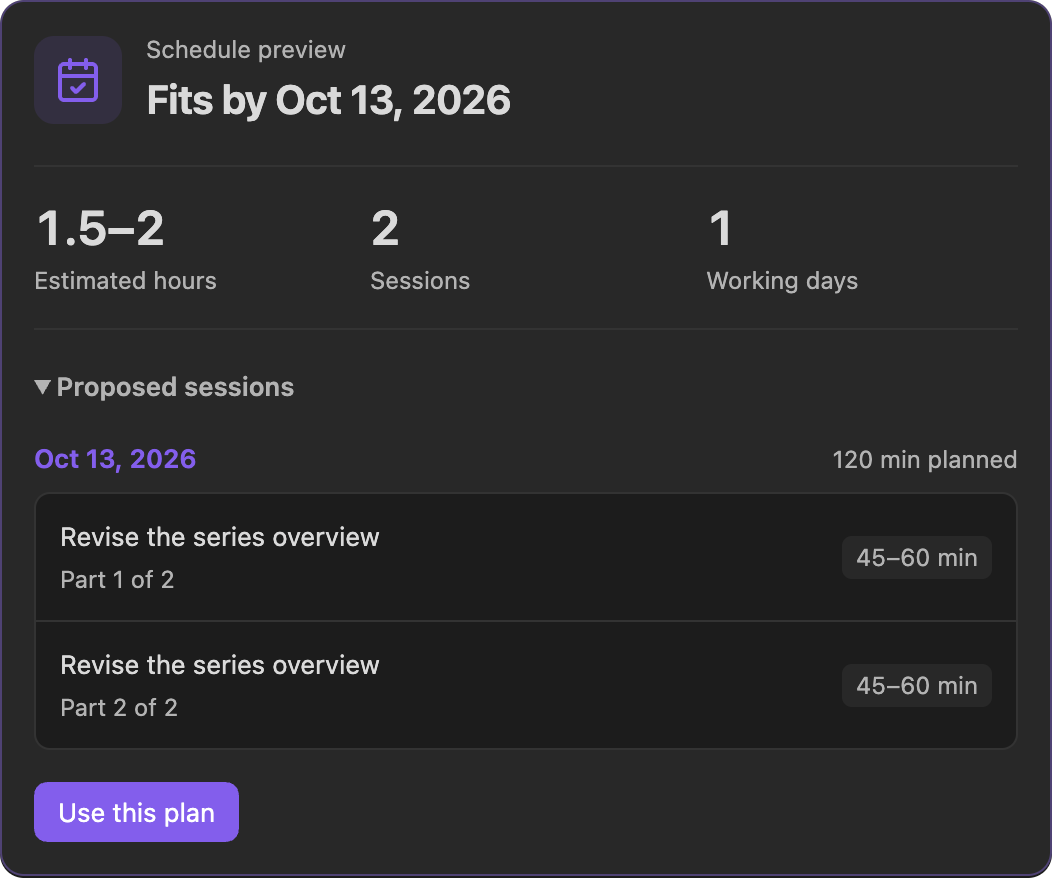
Use this plan saves the plan and its defaults for this book. If feedback, the delivery, or the plan changes while the preview is open, reopen the planner and generate a fresh draft.
Group an editor’s delivery
Section titled “Group an editor’s delivery”Each pass from a person adds a Write your response to (editor) task. It shares the pass’s delivery and return date, Auto-plan places it after that pass’s changes, Start opens the response window, and it is done once you save a response, as a letter or in their Word file. Passes from an AI have none.
Imports group themselves: each batch and Editorialism file joins its reviewer’s open delivery for that role, or starts one received that day (see Importing Reviews). Open Editorial deliveries from the panel’s … menu to add the return deadline and optional existing source note, rename the handoff, or change which batches and Editorialism files belong to it. This does not import a document or duplicate feedback.
Receipt, file creation, and scheduled work dates are separate facts. Leave an unknown received date unknown. A source belongs to one delivery at a time; unlink it before moving it to another. See Editorialisms: delivery tracking.
Automatically plan a delivery
Section titled “Automatically plan a delivery”To schedule one editor’s handoff on its own, open Editorial deliveries, then choose Plan this delivery on a delivery card. This is the same planner as Auto-plan, limited to unfinished, active work from that delivery. The finish date starts at the delivery’s return deadline, and items already in your plan are not duplicated.
For later adjustments, choose Adjust remaining schedule on the delivery card. This is separate from planning new work. It retains manual tasks, completed sessions, other deliveries, locked sessions, and prerequisites of preserved tasks. Use Keep this date under a task’s Schedule & options to preserve a commitment. Regeneration moves eligible existing sessions; it does not recalculate their effort or split them again.
Storage
Section titled “Storage”Plans, progress, delivery links, and scheduling defaults are saved in plugin data per book. Feedback remains in the scene notes and Editorialism files. No calendar account or external scheduling service is required.
Headings set in Kalice, Claude Type, designed by Margot Lévêque.