
Chronologue Mode
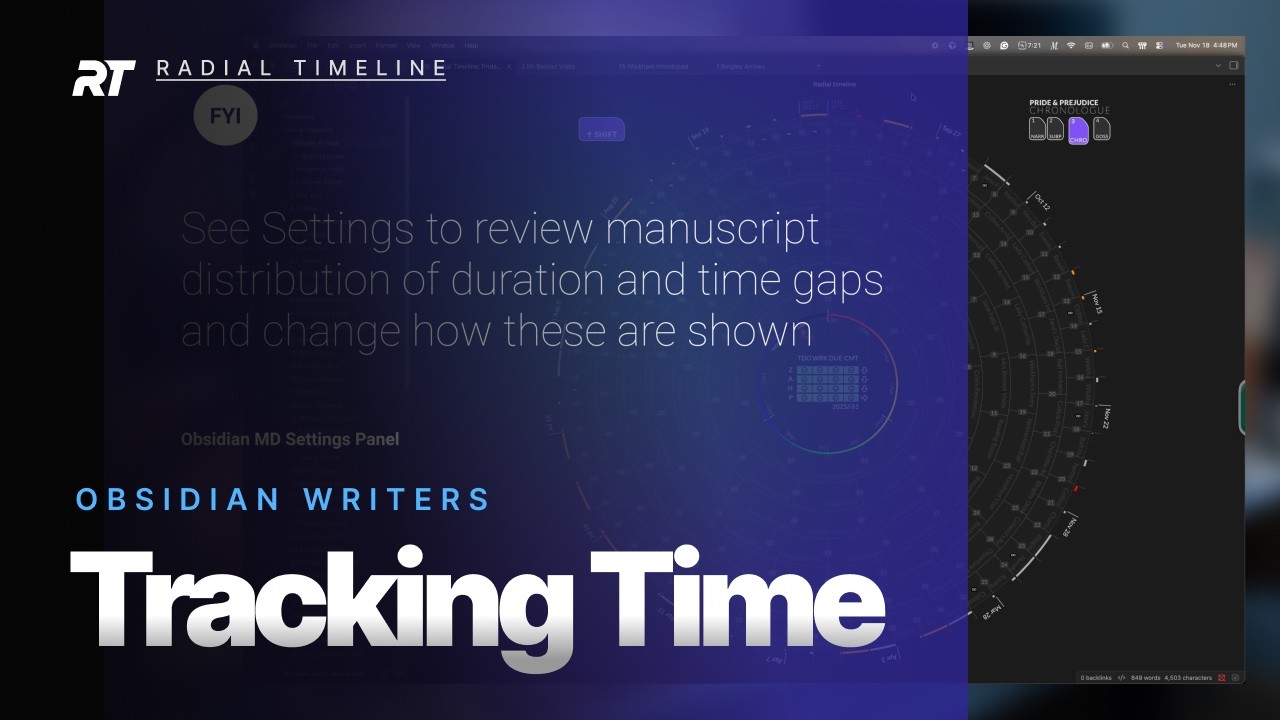
Chronologue Mode walkthrough · Full video on YouTube
Chronologue arranges your scenes by story-world time, so you can build and check the chronological backbone of your story. It is particularly valuable for non-linear narratives, mysteries, thrillers, or any story where when events happen differs from when you reveal them. The palette matches Narrative mode (subplot colors only) so the timing comparisons stay clean while Progress mode retains the Todo/Working/Overdue and progress-stage overlays.
Core Workflow
Section titled “Core Workflow”- Add known timing: Fill in
Whenwhen the story supports a date (YYYY-MM-DD, optionally HH:MM), andDurationwhen useful (e.g., “2 hours”, “3 days”, “1 week”). Leave uncertain dates blank. - Switch to Chronologue mode (press
3or use the top-right navigation): Scenes rearrange to show story-world event order across the full 360° circle. - Activate the Shift sub-mode (press
Shift, useCaps Lock, or click the Shift button): See the bones of your story’s temporal structure for all scenes and subplots. - Compare elapsed time: In the Shift sub-mode, click two scenes to see the elapsed story-time between them with the duration arc. Keep clicking more scenes as needed.
- Analyze time gaps: Also in the Shift sub-mode, discontinuities (large time jumps) appear with an infinity symbol — identify gaps that might need bridging scenes.
Other periods inside a scene
Section titled “Other periods inside a scene”Add Time References for memories, mentions, enacted passages, and possible futures while keeping the scene’s primary When. Their source squares, linked dates, and connectors appear only in normal Chronologue. See Time references for YAML examples, timeline marks, and Timetable child rows.
Undated scenes
Section titled “Undated scenes”Dated scenes establish chronological anchors. Each undated scene stays with the nearest preceding dated scene in its own book’s narrative order. When the anchors rearrange chronologically, their undated followers travel with them, preserving narrative order within each group. Subplot rings use the same relationships, even when an anchor belongs to another subplot.
Opening undated scenes stay immediately before their book’s first narrative anchor. A book with no dates keeps narrative order. Books keep their own anchors in Saga scope; a scene never borrows another book’s date.
This is display placement only. The plugin leaves When blank and does not assume a shared date or elapsed-time interval. An undated return from a flashback may need an authored date if its provisional placement is misleading. Calendar measurements use actual dates; undated scenes do not gain timestamps from their neighbors.
The red number-square indicator remains for undated Working or Complete scenes; Todo scenes stay quiet. Hover text explains which dated scene the undated scene follows or precedes, without asking you to copy a neighboring date. Invalid date values remain something to correct.
Timeline Date Scaffold is optional: use it when you want to assign provisional dates, review them, and apply them. Timeline Date Audit can run with dates left blank. It lists undated scenes separately from warnings and checks actual contradictions and manuscript evidence. See Timeline commands.
Drag a scene to change its date
Section titled “Drag a scene to change its date”In the regular Chronologue view, drag a scene on the outer All Scenes ring and drop it beside a dated scene. Place scene in time shows the neighboring scenes, available room, suggested dates, and a specific date-and-time option. Review the choice and click Place to write the scene’s When. At the top seam, choose whether you mean before the opening scene or after the closing scene. Narrative numbering and order stay unchanged.
If undated scenes follow the scene you are moving, the panel names them. Leave Keep it where it is / Keep them where they are off to let them travel with the moved scene while their When fields stay blank. Turn it on to leave them in place: this writes each follower a When date at its current displayed time. Review those dates before placing the scene.
Date dragging works in the regular view; the Shift and planetary overlays use clicks to compare scenes. To change subplot membership, drag from a subplot ring instead; see Move scenes between subplots.
Why this matters
Section titled “Why this matters”Chronologue orders scenes by story time to help you find:
- Pacing issues (too much/too little story time between events)
- Flashback positioning opportunities
- Timeline consistency problems
- Missing transition scenes
Mode: Chronologue (key 3)
Sub-modes: Shift (key Shift), Alt (key Alt)
Settings: Discontinuity gap threshold
Runtime lives in Narrative Mode, where it follows the order the book presents its scenes.
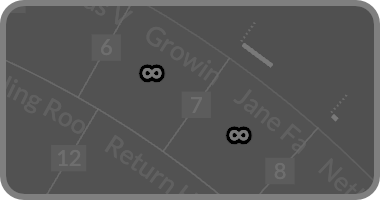
Discontinuity infinity symbols in Chronologue mode
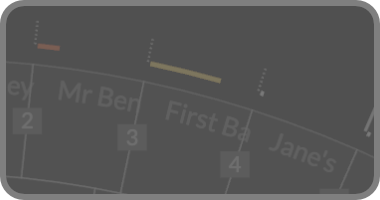
Duration marks in Chronologue mode (red, orange, and normal)
Subplot Alignment
Section titled “Subplot Alignment”The alignment chip at the left of the mode row switches subplot rings between Fill (scenes spread evenly across each act) and Sequence (every scene sits at its true position in the full manuscript, with empty cells where a thread is dormant). See Subplot Alignment in Narrative Mode — the same control applies here.
Sub-modes
Section titled “Sub-modes”Chronologue mode includes two sub-modes, each rendering a distinct wireframe overlay.
Shift sub-mode (x-ray view)
Section titled “Shift sub-mode (x-ray view)”- Toggle with
Shift(orCaps Lock) to strip the overlays and see the raw chronological scaffold. - Gray wireframe. Click any two scenes to measure elapsed story time; keep clicking to update the arc.
- Discontinuities (infinity symbols) help you spot opportunities for bridge scenes.
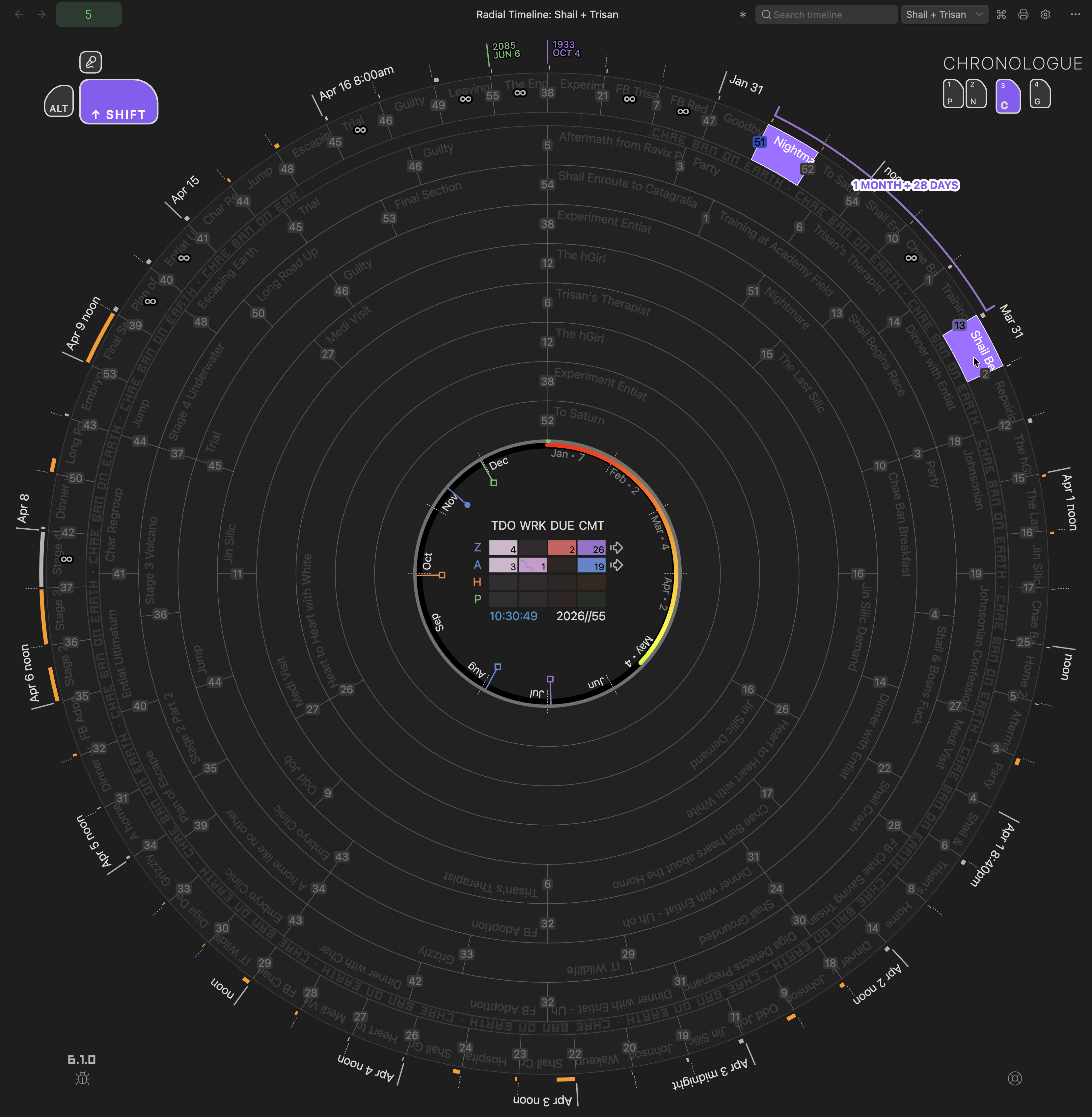
Shift sub-mode — gray wireframe view
Alt sub-mode: Planetary Time
Section titled “Alt sub-mode: Planetary Time”For sci-fi and fantasy authors, Chronologue mode includes a Planetary Time system. While Radial Timeline requires Earth time (Gregorian calendar) for its internal logic and physics, you can create custom “Local Time” profiles to translate these dates into your world’s calendar.
Features:
- Settings: Define custom planetary profiles with specific astronomical facts:
- Hours per day (e.g., 26 hours on Bajor)
- Days per week (e.g., 5-day week)
- Days per year (e.g., 400 days)
- Epoch Offset: Shift the start date of your calendar relative to Earth’s Unix Epoch (1970-01-01).
- Custom Labels: Define custom names for months and days of the week.
- Synopsis Hover: With the Alt overlay off, hover over a scene: its synopsis shows the date converted to your active planetary profile, with the month named in full.
- Calculator: Use the command palette (
Cmd + Pon Mac,Ctrl + Pon Windows/Linux) and search for “Radial timeline: Planetary time calculator” to open a calculator. Enter any Earth date/time to see the corresponding planetary date/time. - Alt overlay: Press
Altto enter the planetary wireframe for your active local time profile. The rim reads in planetary dates; hovering a scene lights it without a synopsis, and clicking two scenes measures the time between them in local units. - Alt + Shift: This mirrors the standard Shift sub-mode in red, so you can compare elapsed time and discontinuities in local planetary time.
- Active profile: The selected profile in Settings controls which calendar is used for hover and conversion outputs.
- Sticky Planet Calendar: Settings -> Core -> Chronologue can make Planet Calendar the default Chronologue display when planetary time is enabled and a valid profile is active.
- Translation layer: Scene timings still derive from Earth timestamps; Planetary Time converts them for display and writing support.
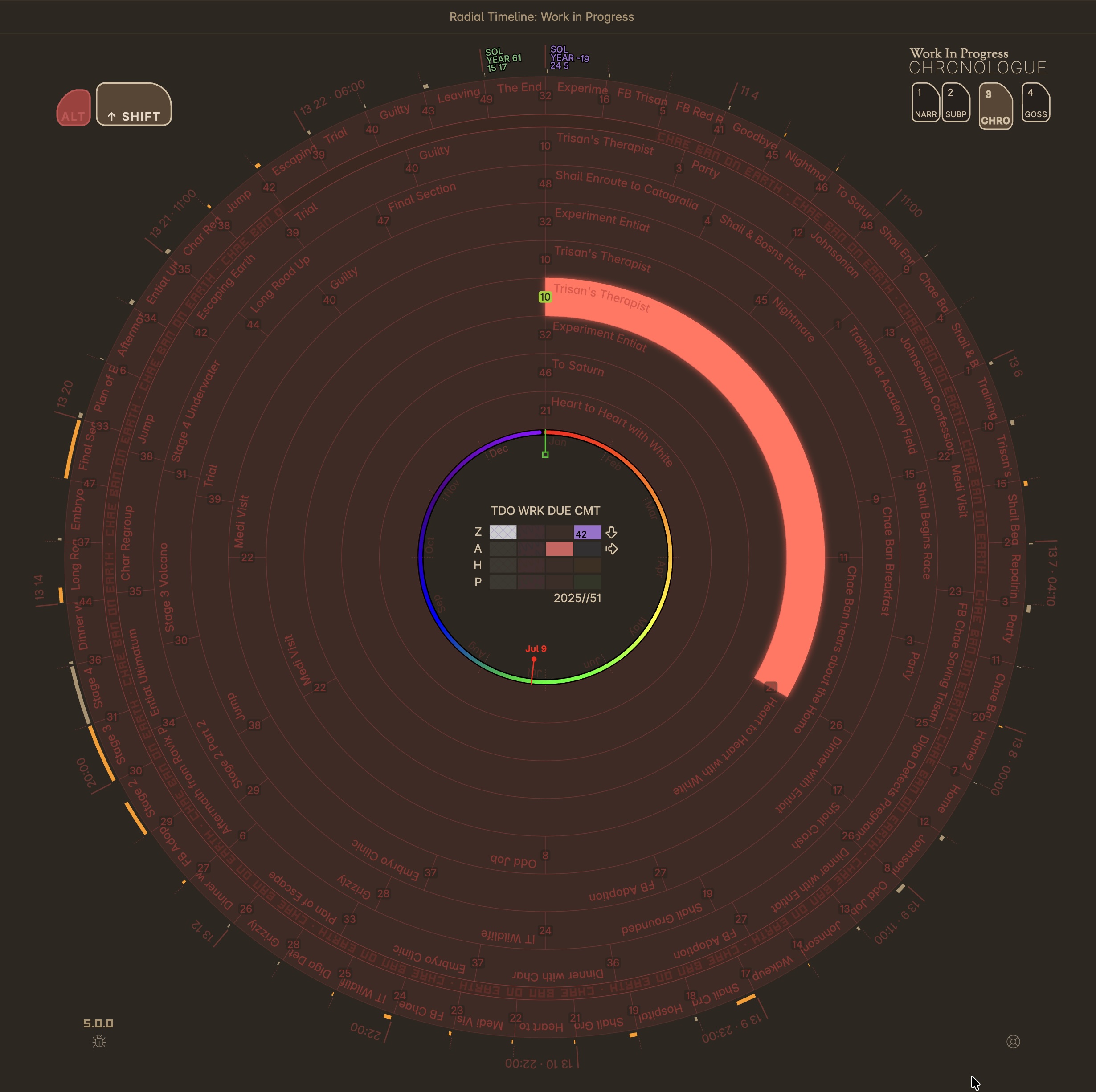
Planetary Time — red planetary overlay for the active local time profile
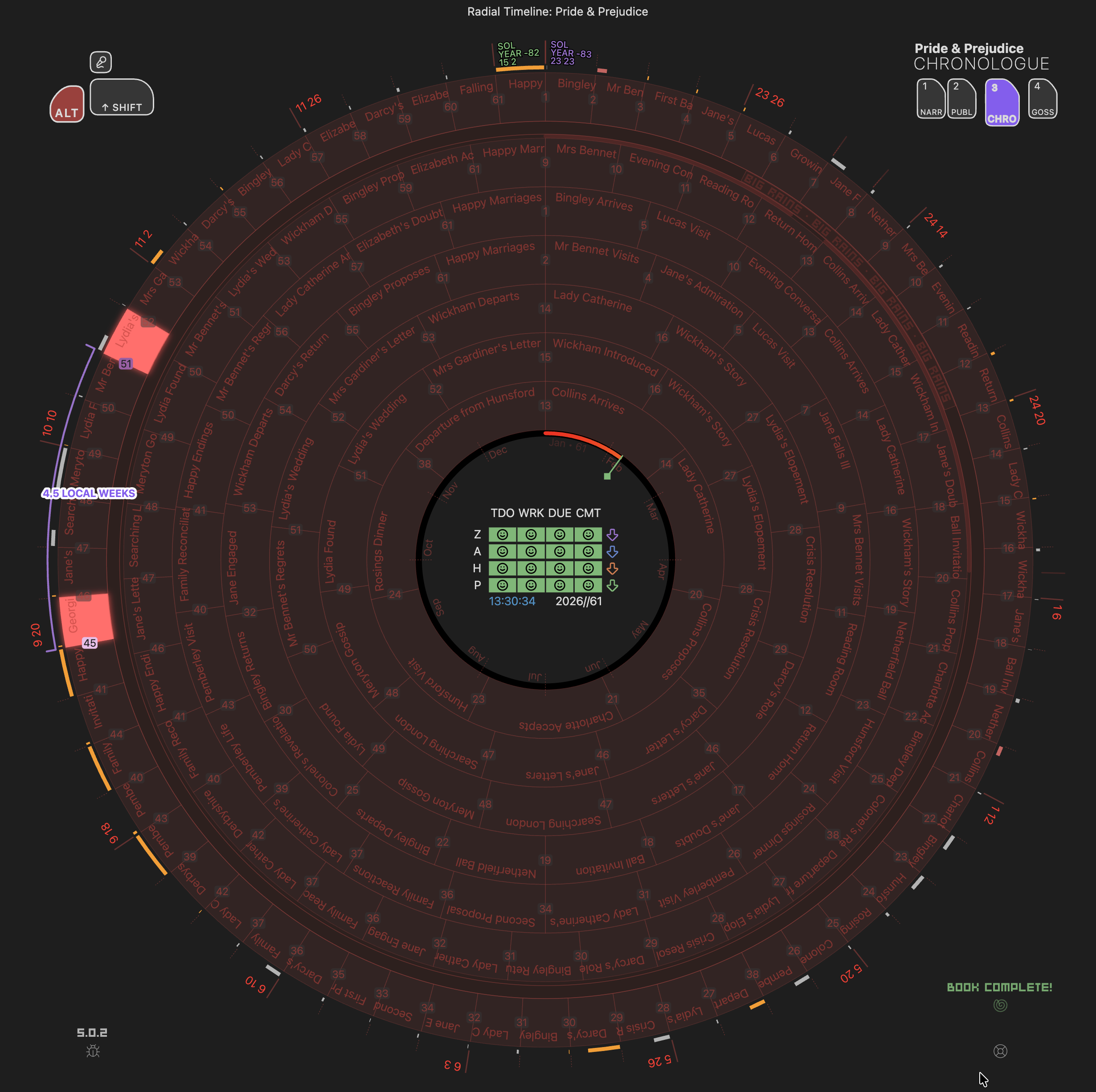
Planetary Time — click two scenes to compare elapsed time in local planetary time
Backdrop Notes & Micro-backdrop Rings
Section titled “Backdrop Notes & Micro-backdrop Rings”Chronologue mode offers two ways to layer contextual information behind your scenes.
Backdrop Notes
Section titled “Backdrop Notes”Backdrop notes visualize major contextual events — historical wars, planetary alignments, or seasonal changes — that drive your plot but aren’t specific scenes.
- Create: Use Radial timeline: Note create and choose Story world → Backdrop to generate a file with start/end times.
- Visualize: These appear as a dedicated ring in Chronologue mode, grounding your scenes in their temporal context.
- Overlaps: Two backdrops may overlap partially, shown with a visual plaid pattern.
Micro-backdrop Rings
Section titled “Micro-backdrop Rings”Configure micro-backdrop rings directly in Settings for brief context markers. Each micro-backdrop is a thin colored ring segment with a title and date range.
- Use cases: Eras, seasons, political regimes, historical milestones, or any contextual time span you want visible at a glance.
- Configure: Settings → Core → Backdrop → Micro backdrops. Add a title, select a color, and set start/end dates.
- Appearance: Micro-backdrops render as compact rings below the backdrop ring, keeping the timeline clean while still providing temporal context.
Headings set in Kalice, Claude Type, designed by Margot Lévêque.