
Manuscript Export
Manuscript export opens the export panel for a Radial Timeline book, a folder of Markdown notes, or a single Markdown file. Publish a novel, an essay, a report, or another document without first turning every note into a timeline scene.
What It Can Export
Section titled “What It Can Export”Choose from:
- compiled Markdown manuscripts
- PDF manuscripts (typeset via Pandoc + LaTeX)
- Word (DOCX) manuscripts in standard submission format
- outline-style exports
- filtered or ranged exports by order and subplot
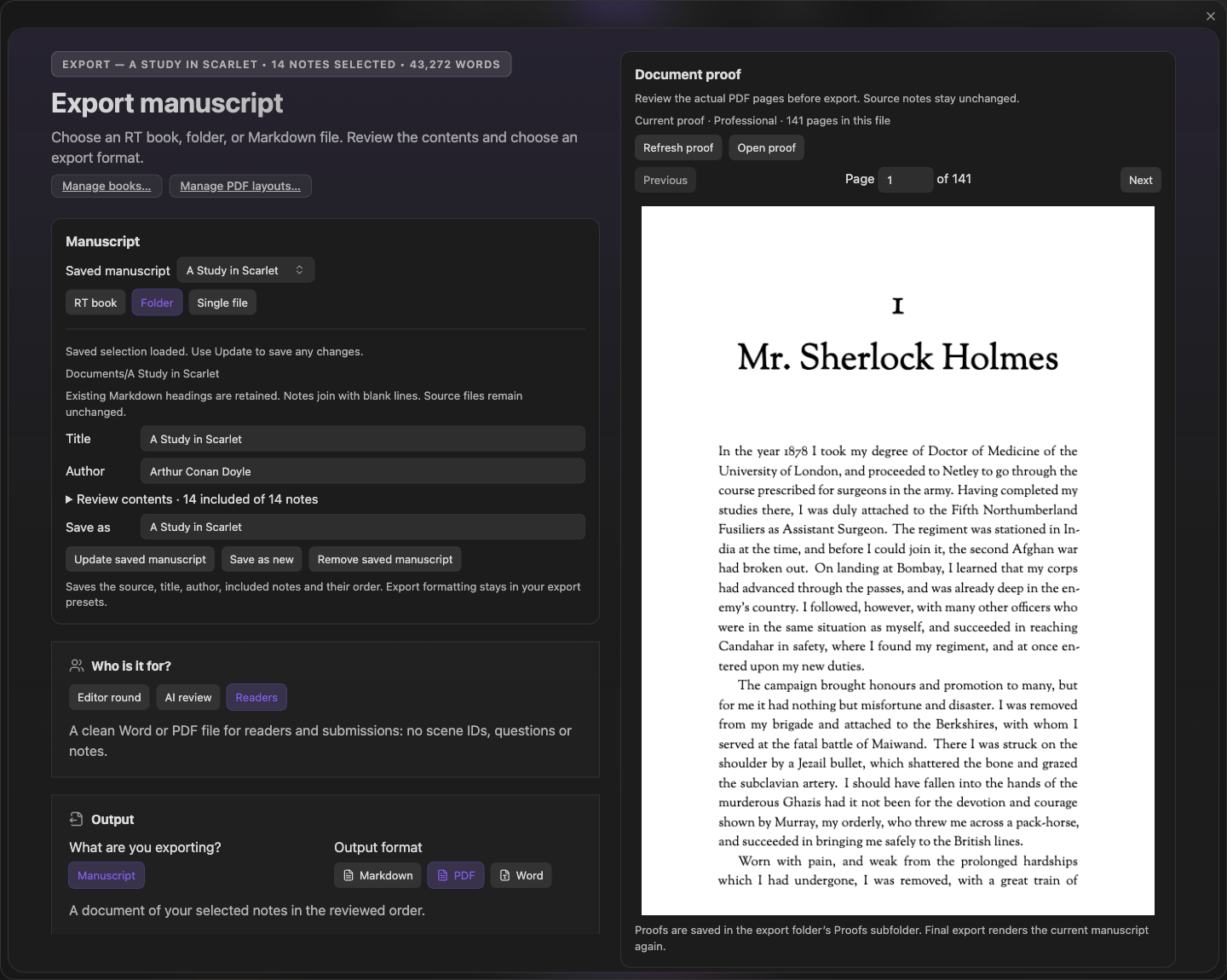
Export includes compiled Markdown, Word submission export, and Pandoc PDF export with the Basic, Standard, Professional, Signature, Screenplay, and Podcast Script layouts, plus custom Pandoc metadata and a custom LaTeX preamble. The PDF style designer (Design your own…) and Import template… are in beta and not yet in release builds.
The panel supports ordering, selection range, output presets, and publishing-oriented layout decisions in one place.
Exporting a Manuscript
Section titled “Exporting a Manuscript”Command Palette → Manuscript export
The export panel lets you:
- Select the output format (Novel, Screenplay, Podcast Script)
- Choose the template for that format
- Select which scenes to include (all, or filtered by act/subplot)
- Choose Markdown, PDF, or Word (DOCX) output
- Review export checks for missing templates, missing fonts, template compatibility, and layout-specific warnings
- Preview the selected layout’s page structure before generating a PDF
Files land in Radial Timeline/Export/ by default, or in whatever vault folder you set under Settings → Advanced → Configuration → Export folder. Use the checks in the export panel to catch missing Pandoc, LaTeX, templates, or fonts before rendering.
Choose and Review the Source
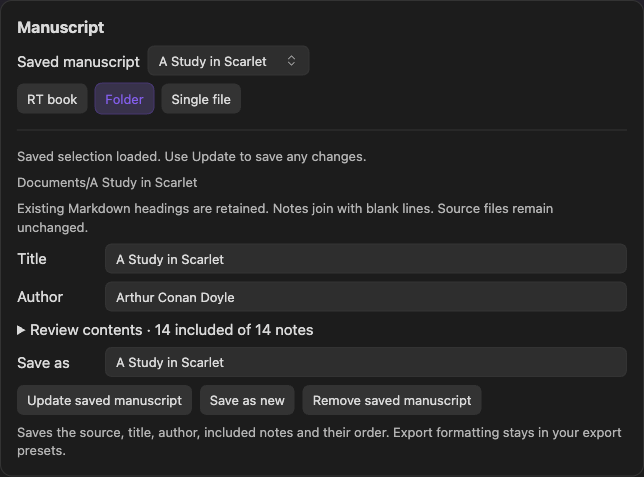
Section titled “Choose and Review the Source”Choose Radial Timeline Book, Folder, or Single file. For a Radial Timeline book, use the book’s scene order, subplot filters, and range controls. For a folder, review the included Markdown notes, remove unwanted entries, move notes earlier or later, then choose Use this order and selection. A single Markdown file is ready as one source. Plain sources retain existing Markdown headings and join notes with blank lines; they do not need scene YAML or Book Manager registration.
For a folder or file, enter Title and Author in the panel. Save a named manuscript to reuse its source, metadata, included notes, and reviewed order. Update saved manuscript stores changes, Save as new creates another selection, and Remove saved manuscript removes the saved choice without deleting notes. Formatting remains in export presets, separately from the source selection.
Your source files stay unchanged. Recheck the included notes when returning to a saved selection, especially after moving or deleting files.
Who Is It For?
Section titled “Who Is It For?”The panel opens by asking who the export is for. Each choice is a built-in preset that sets the format, scene IDs, and cleanup for that reader, and keeps your order, range, and layout:
- Editor round — a Word file for your editor. Scene IDs in headings, your author queries as margin comments, your private
%%notes%%stripped. - AI review — Markdown for an AI reviewer. Scene IDs, author queries, and formatting kept; private notes stripped.
- Readers — a clean Word or PDF file for readers and submissions. No scene IDs, queries, or notes.
Change any setting afterwards and the preset shows as changed: Reload preset restores it, and Save as preset keeps your version under Saved export presets. The panel reopens on the last preset you chose.
A line above the Export button reads back what the file will carry before you make it, for example “34 scenes with IDs · 3 questions as margin comments · your notes stripped”. It warns in orange when private notes would appear, when a PDF would print author queries as text, or when a Readers export still has queries or scene IDs.
Table of Contents
Section titled “Table of Contents”Under Table of contents, choose Contents for a document TOC, then choose how many Heading levels to include. This option works with PDF, Word and Markdown, including folder and single-file manuscripts. No TOC leaves it out. The older scene indexes remain available for Markdown book exports.
- PDF — searchable text, clickable contents with final page numbers, and nested navigation bookmarks. Contents can span multiple pages. Generate a fresh proof after changing contents or depth.
- Word — real heading styles and an updateable TOC field. Open the document in Word and update the entire table to populate its final page numbers and links. Check pagination in Word before sharing.
- Markdown — linked headings with unique block targets for Obsidian and matching HTML anchors for other Markdown viewers. Repeated titles get distinct destinations. Generated navigation is added after cleanup, so stripping source links or block IDs does not remove the new contents.
Radial Timeline books use authored Part boundaries, resolved Chapter markers and scene headings. With all three present, level 1 includes parts, level 2 adds chapters, and level 3 adds scenes. With fewer structural layers, levels start at the first available layer. PDF layouts retain their own opener styling; layouts that omit printed part/chapter pages can still include those divisions in navigation, pointing to the associated opener.
For a printed act division, use an authored part title such as Part: Act II. The analytical scene Act field does not create publishing boundaries. Folder and single-file manuscripts instead use their existing Markdown heading hierarchy, such as # Act I, ## Chapter One and ### Scene One; they need no scene YAML.
Saved export presets retain contents mode and depth. Each split output has contents for the material included in that file. Existing custom PDF templates with custom opener commands may need regeneration in the style designer (beta) before they can place navigation correctly; export reports this rather than producing misleading links.
Word (DOCX) Submission Export
Section titled “Word (DOCX) Submission Export”The Word format produces a .docx in standard manuscript format — the layout agents and editors expect for queries and submissions: Times New Roman 12 pt, double-spaced, 0.5” first-line indents, centered chapter headings that start on a new page. Styling comes from a bundled Word reference document installed into your Pandoc folder (reference-manuscript.docx); configure Pandoc under Settings → Publish to use it.
Front & back matter Book Pages can be included, and the export cleanup toggles (comments, links, callouts) apply the same way they do for PDF. Highlighted words print as plain text in both, without their == marks or color.
Pages are US Letter with 1” margins, and Word opens the file as a current document rather than in Compatibility Mode. A scene break written as --- or *** becomes a centered #.
If you write scenes with a single return between paragraphs, turn on Every line is a paragraph: each line break then starts a new indented paragraph, in Word and PDF. Leave it off for hard-wrapped text.
Author queries as Word comments
Section titled “Author queries as Word comments”When Strip author queries is off, each Editorialist author query (%%query: Is this scene too slow?%%, or the older %%ai: spelling) becomes a Word margin comment at the spot you asked it, signed with the book’s author. Your editor sees the questions where they belong and can answer each one in its comment thread. A query on a line of its own attaches to the end of the paragraph above it.
Bring the returned file to Editorialist the same way as the editor’s first round: copy the formatting instructions from the review launcher and give them, with the file, to the AI of your choice. Each answer comes back on its question.
Paperback Binding Margin (PDF)
Section titled “Paperback Binding Margin (PDF)”PDF options include a Paperback binding margin toggle. When on, exports add 0.25” to the inner margin so text clears the spine of a printed, bound paperback (KDP/IngramSpark). Leave it off for PDFs meant to be read on screen — it changes the page geometry. The setting persists across exports.
PDF Layouts
Section titled “PDF Layouts”For PDF exports, choose a novel PDF layout from the layout selector. The selected layout controls the page style, required font checks, chapter opener behavior, and whether the export prints Part pages.
The preview cards show the expected chapter, part, and body-page structure before export. Export checks report missing Pandoc, LaTeX, bundled fonts, and layout-token problems before you generate the PDF.
The selected novel PDF layout is remembered per book. Narrative Mode uses that same setting for chapter and part placards on the timeline. See Narrative Mode.
Review the Actual PDF
Section titled “Review the Actual PDF”For PDF output, use Generate proof to render the current manuscript, then inspect its actual pages in the Document proof workspace. Move between pages and refresh the proof after changing the manuscript or export options. Proofs are saved under the export folder’s Proofs subfolder; final export renders the current manuscript again.
After export, the delivery review lists the files saved to the destination, and Open file is the main button. Open those final files to check the result, particularly split outputs. Save compiled + Pandoc-ready Markdown files also keeps the assembled and cleaned source beside the export for inspection.
Recent Exports
Section titled “Recent Exports”Recent exports, in the export panel’s header and beside Destination, lists your last five exports with their dates, formats, and files, each with Open file. Split exports list every file. Details shows the automatic file checks for that export. Under Optional sign-off you can record that you inspected the final files; the sign-off stays with that export, and opening a file never marks it reviewed. Recent exports opens the files you delivered; it does not regenerate an earlier export.
Related Docs
Section titled “Related Docs”Headings set in Kalice, Claude Type, designed by Margot Lévêque.