
Settings Core
The Radial Timeline is designed to empower you, the author, toward greater productivity and accountability. Use Core settings to align the timeline with your manuscript’s structure, sharpen your workflow, and move faster with clarity.
Configure book profiles, progress tracking, runtime estimation, story beats, scene properties, chronology, narration, planetary time, and ring colors.
To import an existing draft, use Choose manuscript. Scan for exports suggests potential local exports; scanning runs automatically when no configured book folder is usable. Review export completeness, narrative order, and metadata in Import a manuscript.
- Book profile manager: Create one profile per book, set the title, and link each profile to its manuscript folder.
- Active book: The active book drives the timeline view, central title, and exports.
- Linked folder: Each book profile stores its own folder path. That is where Radial Timeline looks for that book’s notes.
- Book details: Set how the book is narrated (see Narration), and add optional genre, project stage, public label, and description.
- Scene count: Each book card shows how many
Class: Scenenotes are currently found in that folder. - Reorder books: Drag books to control saga order.
- Create draft: Make a sibling draft copy of a book folder and add it as a new book profile.
- Remove profile: Removes the book profile and preserves its files.
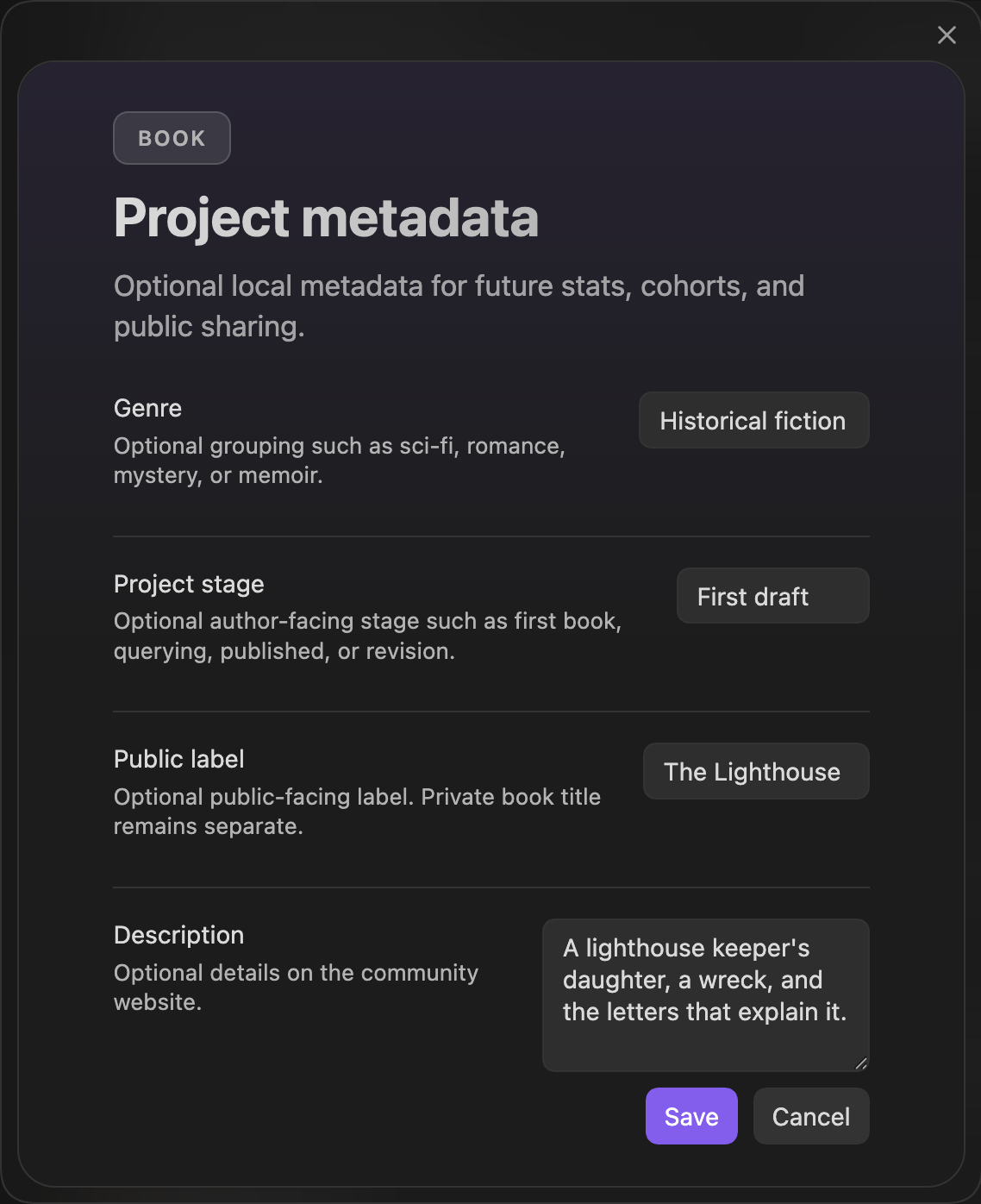
Book details — the description adds optional details on the Community website
Progress And Status
Section titled “Progress And Status”Manage your project milestones and status tracking.
Stage target dates:
- Zero target date: Target completion date for the Zero Draft stage (
YYYY-MM-DD). - Author target date: Target completion date for the Author’s Draft stage. Must be after the Zero target date.
- House target date: Target completion date for the House Edit stage. Must be after the Author target date.
- Press target date: Target completion date for the Press Ready stage. Must be after the House target date.
Target dates are validated to ensure proper stage ordering. Overdue dates are highlighted in red. Each stage has its own color-coded marker on the timeline.
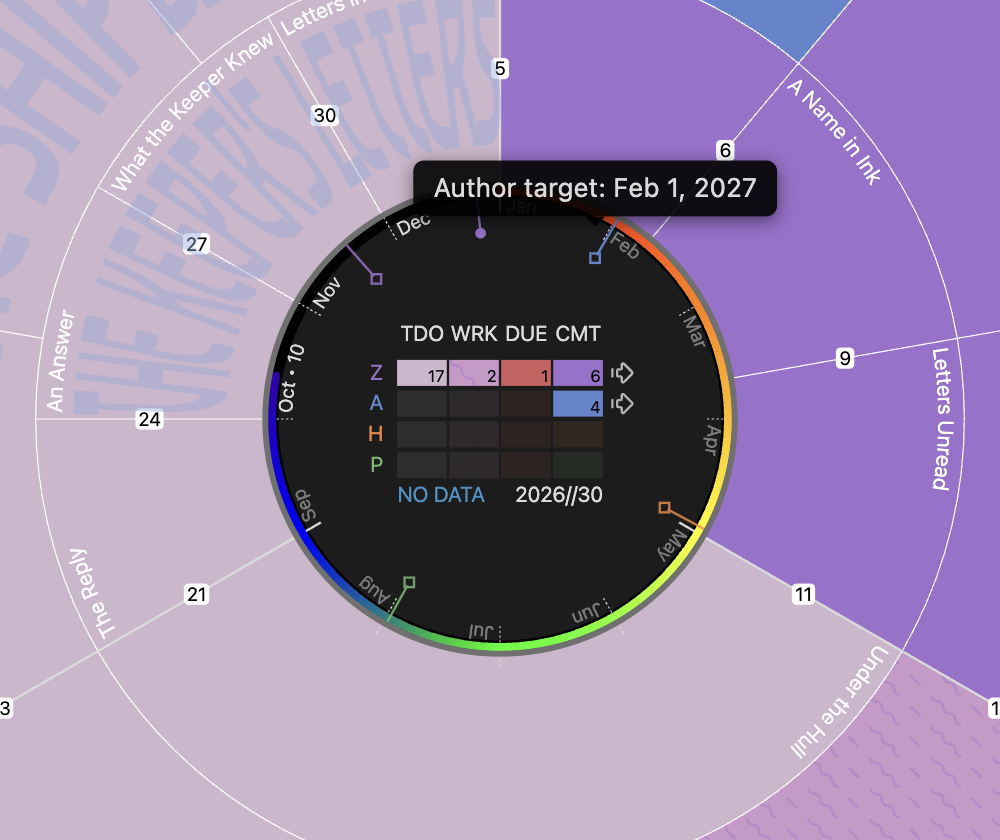
Stage target markers on the centre year ring — hover one to see its date
- Show estimated completion date: Toggles the predicted completion tick mark on the timeline.
- Zero draft mode: A focused mode for first-draft writing. Intercepts clicks on scenes with
Publish Stage = ZeroandStatus = Completeto open aPending Editspanel instead of the full note.
How the completion estimate works
- Scope: Only the active stage (highest stage with any incomplete scenes). Other stages do not affect pace or remaining.
- Total scenes for the active stage:
max(unique stage scenes, highest scene number seen anywhere). This lets an early high-numbered scene (for example,Scene 70) set a floor even if few notes exist. - Remaining: Total - Completed (stage-scoped, deduped by path, clamped to
>= 0). - Date: Requires at least 2 completed scenes in the window for a confident pace. With fewer, the geometry stays but the label shows
?. - Pace window: The estimate uses completions from the last 30 days.
- Staleness colors: fresh (
<= 7d), warn (8-10d), late (11-20d), stalled (>20dor no pace/insufficient samples, red?).
Sessions
Section titled “Sessions”Sessions is a Core workflow for writing accountability and basic planning.
- Average drafting pace: Optional words-per-minute estimate for new drafting. Used for writing-time estimates and completion planning.
- Daily time target: Optional minutes you realistically want to write each day. Used to estimate session counts and calendar time.
- Daily word target: Optional typed-word target for writing sessions.
- Daily target type: Choose whether the session control and writing stats track time, typed words, or both.
- Weekly writing goal: How many days per week you want to meet the daily session target.
- Writing stats: A collapsible local stats panel summarizes today, the last 7 days, and the last 30 days from timer records and scene completion dates.
- Timeline count/session button: The compact title-bar button opens the writing-session popover. Start an open-ended session or a countdown sprint, then pause, resume, stop, or discard it there.
- Session ring: While a session is active, a thin timer ring appears just outside the rainbow progress ring. It fills toward the active time or word target.
- Save session details: Saving a timer session opens a confirmation panel for minutes, words added, scenes completed, pages edited, and an optional note. Tick Allocate this session to scenes to give each scene its minutes and words, and Update scene Total Time with this session to add those minutes to each scene’s hours.
Runtime and export tools may read these values, but Sessions owns the writing/session estimate settings.
Scene completion stats use scenes with Status = Complete and a Due date. Publish Stage = Zero counts as fresh scene completion; Author, House, and Press count as revision rounds.
Runtime Estimation
Section titled “Runtime Estimation”Runtime estimation is configured from the Core tab.
- Enable runtime estimation: Activates runtime calculations for scenes and the Narrative Runtime view.
- Default runtime profile: The profile used when no per-scene override is set.
- Edit profile: Manage multiple profiles with different settings for various project types.
- Profile label: Display name shown in selectors and the runtime panel.
- Content type: Choose between Novel/Audiobook (unified narration pace) or Screenplay (separate dialogue/action pacing).
Screenplay mode settings:
- Dialogue words per minute: Reading speed for quoted dialogue (default 160).
- Action words per minute: Reading speed for scene descriptions (default 100).
- Parenthetical timings: Seconds added for screenplay directives such as
(beat),(pause),(long pause),(a moment),(silence).
Novel/Audiobook mode settings:
- Narration words per minute: Reading pace for all content (default 150).
Story Beats System
Section titled “Story Beats System”Configure the structural pacing guide for your story. Gossamer Mode scores the beats you set up here.
- Story beats system: Choose a built-in structure (Save the Cat, Hero’s Journey, Classic Dramatic Structure, Podcast Narrative Arc, YouTube Explainer Arc, Documentary Narrative Arc, Romance Tropes Ladder, Thriller Escalation Ladder) or a custom system.
- Custom story beat system editor: Name your system (the name is written to each beat note’s
Beat Modelfield), add beats with +, assign each beat to an act, and drag to reorder within or across acts. Edit names inline; after renaming or reordering, use Repair beat notes to update existing files. Create blank system starts a new one: give it a System name before you save it, and Save changes adds it to your library under that name, so its beat notes carry it too. - Create beat notes: Generates one beat note per beat in the active book folder, with
Class: Beat,Purpose,Beat Model,Rangeand the other beat properties filled in, so Gossamer recognizes them at once. The button is disabled when every beat already has a note, and shows how many notes it will create. - Beat filename numbering: Generated beat notes use decimal minor prefixes (for example,
7.01 Midpoint.md) so scene integer slots remain canonical. - Repair beat notes: Updates
Act,Beat Model, andClasson existing beat notes, preserving filenames. It works for library systems such as Hero’s Journey as well as your custom ones. - Beat properties editor: Customize additional beat properties and choose which fields appear in beat hover metadata. Stored per beat system.
- Saved sets: Save and switch between multiple custom beat systems. Each set stores its beats, beat properties, and hover fields.
Row colors in the editor show how your beat list matches the beat notes:
- Green: the beat note exists and is aligned.
- Orange: the beat note exists but sits in the wrong act. Repair beat notes fixes it.
- Red: a duplicate title, or more than one file matches. Resolve it by hand.
- No highlight: a new beat with no note yet.
Beat Audit and Repair
Section titled “Beat Audit and Repair”The beat audit checks your beat notes against the active beat system. Repair beat notes brings existing notes into line with the beat list. It changes frontmatter only and never renames files.
| Check | Description |
|---|---|
| Beat identity | Matching is by canonical beat name (normalized title; prefix numbers are stripped for matching). |
| Act placement | The audit compares each note’s Act with the beat’s act in the system. A mismatch is misaligned. |
| Manuscript sequence | Beats are ranked by filename prefix and compared with the system’s beat order. A beat whose position diverges is flagged out of manuscript sequence. |
| Duplicates | Several beat notes normalize to the same canonical name. Flagged as duplicate; resolve by hand (delete or rename one). |
| Missing | Expected beats with no matching note. Flagged as new. |
| Missing Beat Model | Notes that match a beat but lack Beat Model, or carry a different one. Repair fixes these. |
A beat is synced when exactly one note matches it, its Act matches, and it sits in the system’s order within the manuscript.
Repair beat notes sets Act to the beat’s act, Beat Model to the active system name, and Class to Beat when missing. It never touches Purpose, custom fields, or the note body, and it skips duplicates, path conflicts, and beats with no note.
Prefix numbers matter for relative order, not their exact value: 5.01 Midpoint is fine as long as it sorts into the right place among the other beats. To fix a beat flagged out of sequence, rename its file yourself; repair doesn’t rename files.
Beat Notes by Hand
Section titled “Beat Notes by Hand”You can also create beat notes yourself. Give each one this frontmatter, with your system’s name as the Beat Model:
Class: BeatPurpose: Why this beat exists in the structure.Beat Model: Your System NameThe Beat Model value must match the system name in settings for the note to be recognized. Custom beat notes use the same properties as the built-in systems, so the beat properties editor can extend them with your own fields.
Configure the high-level structure of your narrative ring.
- Act count: Sets the number of acts (minimum 3). This divides the Progress, Narrative, and Gossamer rings.
- Act labels: Optional custom names for your acts.
- Show act labels: Toggle to hide labels and show only act numbers.
Scene Properties
Section titled “Scene Properties”Manage the scene note properties that Radial Timeline maintains and shows in hover metadata.
- Core properties: Always included in scene notes and maintained automatically.
- Advanced properties: Optional scene note properties you can enable, edit, and reveal in hover.
- Scene hover preview: Preview how enabled scene note properties appear in hover metadata.
- Scene note maintenance: Check notes, add missing properties, add missing IDs, reorder maintained properties, and clean up duplicate IDs. The check also lists each scene whose
Narrationholds something other than a narration, such as a character’s name, with its value, for you to review.
Important behavior:
- Radial Timeline-maintained scene normalization only manages the core and current advanced scene-property fields.
- Scene-property maintenance preserves your custom fields and fields from other plugins.
- Reordering keeps custom fields beside the managed property directly above them.
- Remap frontmatter field keys lives in Settings → Advanced → Configuration.
Chronologue Mode Settings
Section titled “Chronologue Mode Settings”Configure the time-based visualization of your story.
- Chronologue duration arc cap: Determines the maximum duration used for scaling the duration arcs. Can be
Autoor a specific timeframe. - Discontinuity gap threshold: Controls the sensitivity of the Shift sub-mode. When the gap between scenes exceeds this threshold, an infinity symbol appears.
- Default calendar view: Choose whether Chronologue opens in the standard Earth timeline or jumps straight to the Planet Calendar view when planetary time is enabled and a valid profile is active.
Narration
Section titled “Narration”Show how each book is narrated, and mark each scene’s POV character in the synopsis and the character lanes. The POV character is always the first name in a scene’s Character list.
- Book narration: Each book sets its own narration in its book details, the tag button on its card under Books: first person, second person, third person, omniscient, or objective. Open book details opens the active book’s. A saga marks every scene by its own book’s narration. A book with no narration set marks its first listed character with
¹. - Scene overrides: A scene narrated differently from its book carries a
Narrationproperty, such asNarration: firstfor a letter inside a third-person novel, orNarration: twofor a scene two characters carry. New scenes get an emptyNarrationproperty; leave it empty and the scene follows its book. - Character lanes: In Narrative mode, shows a lane under the outer ring for each of the four characters who are POV in the most scenes. See Character Lanes.
- Narration examples: A preview of how each override marks the cast.
Scenes from before Radial Timeline 8 may carry this property under its earlier name, POV. Radial Timeline reads it the same way until you apply Scene field POV is now Narration at the top of Core settings. The update renames POV to Narration in every scene and keeps its value exactly as you wrote it. A value that is not a narration, such as a character’s name, stays too, and the scene then follows its book’s narration. Where a scene already has a Narration value, an empty POV, or one that says the same thing, is dropped, and a POV that says something else stays beside it, listed for you to review. New scenes get an empty Narration property where they had POV.
Planetary Time
Section titled “Planetary Time”Configure custom calendars for sci-fi and fantasy worlds.
- Enable planetary conversions: Activates planetary time conversion features.
- Active profile: Selects which custom calendar profile is currently active.
- Profiles: Create and edit profiles with day length, year length, epoch offsets, and custom month/day names.
Backdrop And Micro-backdrops
Section titled “Backdrop And Micro-backdrops”Configure the Chronologue backdrop ring and micro-backdrop rings.
- Show backdrop ring: Display the backdrop ring in Chronologue mode.
- Micro backdrops: Create thin ring segments with a title, color, and date range for eras, seasons, or milestones without creating full backdrop note files.
Working Patterns
Section titled “Working Patterns”- Working patterns: The pattern library used for scenes whose
StatusisWorking. - Working pattern: Choose the live motif used on the timeline for
Workingscenes. - Custom patterns: A custom-pattern editor for author-defined motifs.
Progress Stage Colors
Section titled “Progress Stage Colors”- Progress stage colors: Customize the colors used for the progress stages (
Zero,Author,House,Press).
Subplot Ring Colors
Section titled “Subplot Ring Colors”- Subplot ring colors: Customize the 16-color palette used for subplot rings. Each swatch is named for the subplot that wears it now. Rings take palette colors in ring order, outermost first, and Main Plot always wears the first. A palette color that another subplot wears as its own color goes to no other ring, so no two subplots share a color while the palette has colors left.
- Subplots with their own color: A subplot created from a Canvas card color keeps that color wherever Radial Timeline shows it: the timeline rings, the subplot key, the Timetable, Panels, Outline and Canvas cards. It takes no palette color, so the next ring takes the one it would have worn. These subplots are listed under the palette for the active book. Change a color there, or reset it to return that subplot to its ring’s palette color. To rename a subplot and keep its color, use the Subplot manager: its color and the Canvas cards given it follow the new name. A name changed by hand in your scenes’ properties is a new subplot to Radial Timeline, which takes a palette color; the old name’s color stays listed here, holding nothing, until you reset it. The color is saved with the book in Radial Timeline’s settings, never in your scenes’ properties. See Bring ideas from Canvas.
Headings set in Kalice, Claude Type, designed by Margot Lévêque.