
Settings AI
The AI tab controls provider setup, model selection, prompt framing, cost awareness, and the defaults used by Inquiry, Pulse, Gossamer, and Summary scene refresh.
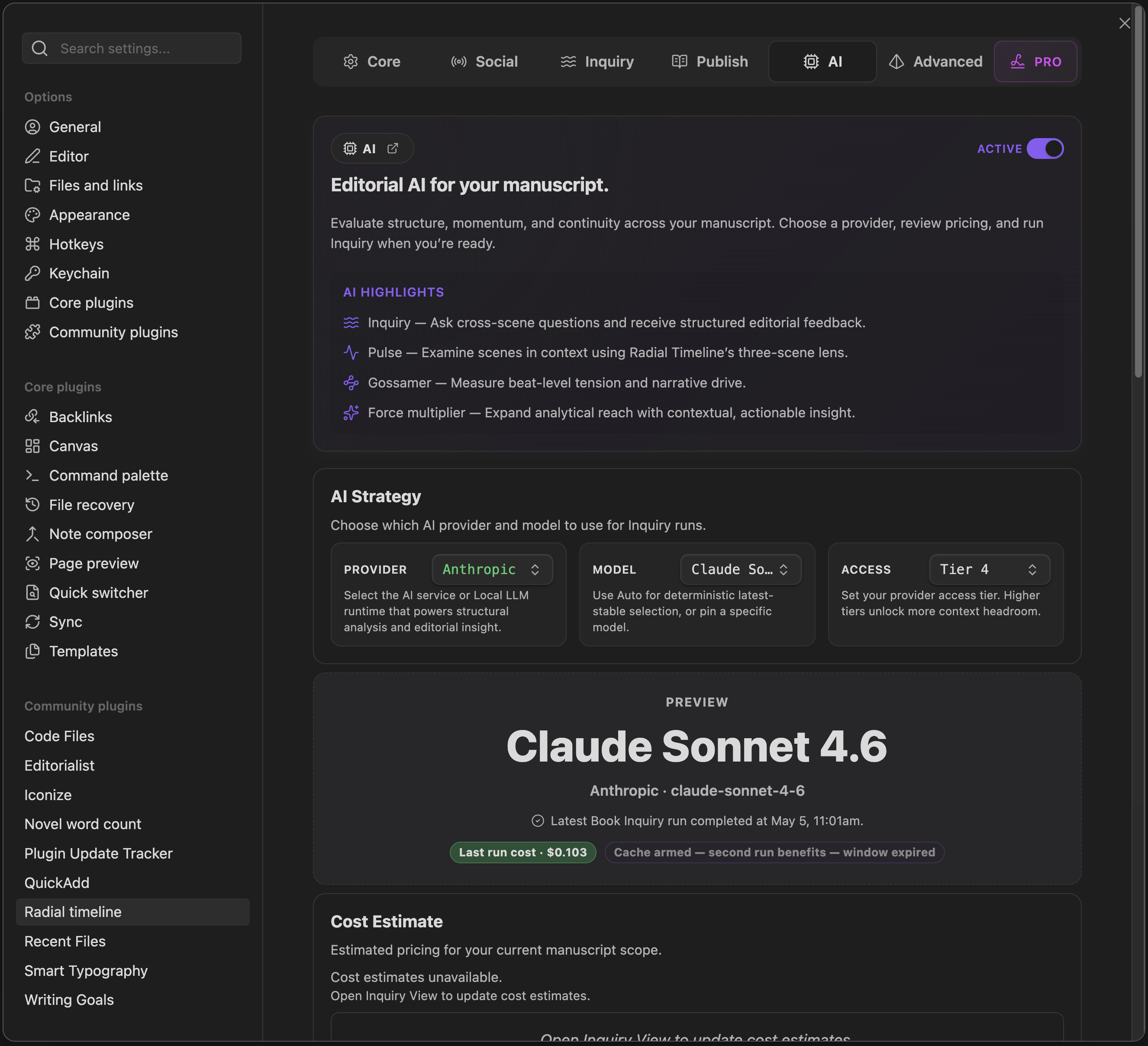
Settings → AI
AI Toggle
Section titled “AI Toggle”- Enable AI LLM features: Enables AI-assisted commands and scene analysis. Turning it off stops queued requests and closes active AI connections. Saved Inquiry results remain available to read.
On a new install, enable this toggle and configure a cloud provider API key or a local AI server to use AI features. Existing vaults retain the setting you chose.
AI Strategy
Section titled “AI Strategy”This is the main routing section for cloud and local AI.
- Provider: Choose Anthropic, OpenAI, Google, or Local LLM.
- Model: Choose Auto for the latest stable model, or select a specific model to pin it.
- Access: Set the tier that your provider account has granted you. This setting controls context limits and capability headroom; your provider manages account billing and data-use terms.
- Cost Estimate: Shows estimated Inquiry pricing for your current manuscript scope.
- What gets sent to the AI: Breakdown cards for Inquiry and Gossamer so you can see the rough corpus, prompt, output, and processing footprint.
Role Context
Section titled “Role Context”- AI prompt role & context template: Controls the shared editorial framing used across AI features.
- Manage context templates: Use the gear button to edit templates and switch the active one.
- Summary scene refresh ignores the role template, so an editor persona never colors a scene’s summary; summaries stay factual.
Prompt Caching And Re-runs
Section titled “Prompt Caching And Re-runs”- Caching. Inquiry and Gossamer can reuse matching manuscript material through the selected provider’s prompt cache. Anthropic and OpenAI requests include the material, and the provider identifies matching input for reuse. Gemini can store the material in a temporary cache that later requests reference, including after a plugin reload while the cache remains valid. Cache availability and pricing depend on the provider, model, and time between requests.
- Re-runs ask again. Running Summary scene refresh, Pulse, or a Gossamer score again, even within two minutes, sends a new request instead of returning the previous answer. The Gossamer confirmation notes when that signal was already scored on the same unchanged manuscript in this session, so you can cancel an accidental repeat.
API Keys
Section titled “API Keys”Store each cloud provider’s key in Obsidian secret storage on this device. The secret name identifies the saved key; enter the API key itself in the provider’s key field.
- Radial Timeline validates saved keys with the provider and shows their status.
- Replace key… updates the saved key; Copy key name copies its secret-storage name.
- Secure key saving requires an Obsidian build with secret storage.
AI Processing
Section titled “AI Processing”Running an AI feature sends its selected manuscript material and instructions to your configured cloud provider or Local LLM server. Inquiry’s material modes determine which notes contribute prose or summaries.
Cloud providers process submitted content under their own retention, caching, and model-training policies. Every Gemini request opts out of Google’s request storage (store: false), which is on by default for new paid Google projects. See Anthropic’s data retention policy, OpenAI’s data controls, and Gemini’s terms.
Configuration
Section titled “Configuration”Set defaults for analysis and scene hover display.
Inquiry
Section titled “Inquiry”- Enable citations (temporarily unavailable): Strict provider-level inline citations are still paused.
- Findings include evidence quotes and scene references in the result’s Sources block.
Timeline display
Section titled “Timeline display”- Pulse context: Include previous and next scene analysis in the scene hover reveal.
- Synopsis max words: Base target for stored Synopsis generation.
Summary Scene Refresh Defaults
Section titled “Summary Scene Refresh Defaults”- Target summary length: Default word target when opening Summary scene refresh.
- Treat summary as weak if under: Default threshold for selecting scenes as weak/stale in the Inquiry View Corpus model.
- Also update Synopsis: When enabled, Summary scene refresh also rewrites
Synopsisusing the configured cap.
Local LLM
Section titled “Local LLM”Choose Provider → Local LLM to use Ollama, LM Studio, or another OpenAI-compatible server. Select a model and run Validate Local LLM to check its readiness for the features you use.
A server on the same machine keeps manuscript text on-device and uses your own hardware. If you configure a network server, manuscript text is sent to that endpoint.
Local LLM Configuration
Section titled “Local LLM Configuration”- Local server: Select the runtime behind the Local LLM path — Ollama, LM Studio, or a generic OpenAI-Compatible server.
- Base URL: Endpoint for the selected server. Defaults differ per runtime — see the setup blocks below.
- Manual model ID (fallback): Enter a model ID when automatic discovery misses it.
- Structured JSON mode: Choose server-enforced Response format or Prompt only. Radial Timeline validates replies in both modes.
- Context window (tokens): How many tokens your server holds for the selected model. Local servers don’t report this reliably, so Radial Timeline plans for 32,000 until you set it; each model keeps its own value. Match your server’s setting. Ollama uses a small window unless you raise
OLLAMA_CONTEXT_LENGTHor the model’snum_ctx, and a number above what the server actually uses gets prompts cut off without warning. A larger window lets Gossamer and Inquiry send a manuscript in one pass instead of several. - Model capabilities: Declare Extended reasoning, Long context, and High output ceiling to match your model; these settings determine feature eligibility.
Local LLM Status And Validation
Section titled “Local LLM Status And Validation”This section is the health check for local AI.
- Load Servers: Detect available local runtimes.
- Load Models: Query the selected runtime for installed models.
- Validate Local LLM: Run connection and capability checks.
- The status area reports connection, model availability, validation state, and rough capability strength.
Setting Up Ollama
Section titled “Setting Up Ollama”- Install and run Ollama on the same machine as Obsidian (or a machine reachable from it).
- Pull a model with Ollama’s own tooling, then select Ollama as the local server.
- Base URL defaults to
http://localhost:11434/v1. Leave it as-is for a local install; change the host if Ollama runs elsewhere on your network. - Use Load Models to confirm Radial Timeline can see your pulled models, then Validate Local LLM.
Setting Up LM Studio
Section titled “Setting Up LM Studio”- Install LM Studio and download a model inside it.
- Start LM Studio’s local server (its own UI has a server toggle), then select LM Studio as the local server in Radial Timeline.
- Base URL defaults to
http://localhost:1234/v1. - Use Load Models to confirm the loaded model is visible, then Validate Local LLM.
Local LLM Troubleshooting
Section titled “Local LLM Troubleshooting”Validate Local LLM runs a sequence of checks — each can fail independently, and the message tells you which one to fix first.
| Check | What it means | How to fix |
|---|---|---|
| Server unreachable | Radial Timeline could not reach the Base URL at all. | Confirm the runtime is running, the port matches (Ollama 11434, LM Studio 1234), and no firewall/VPN is blocking localhost traffic. |
| Model not loaded | The server responded, but the model you selected isn’t among the models it reports. | In Ollama, pull the model; in LM Studio, load it in the app. Then re-run Load Models. |
| No structured-output support | The server returned text, but Radial Timeline could not get clean structured JSON out of it — required for Pulse, Gossamer, and Inquiry to parse results. | Try a different, more capable model. Some small or heavily quantized models cannot reliably follow structured-output instructions. |
| Context too small | The model’s context window or output limit is too small for the prompt Radial Timeline needs to send (this shows up as a low capability tier, or as a timeout on basic/structured completion checks). | Choose a model with a larger context window, or reserve Local LLM for lighter tasks (Summary, single-scene work) and use a hosted provider for larger corpus features. |
Pulse Model Requirements
Section titled “Pulse Model Requirements”Pulse sends three scenes together and requires structured JSON results. Choose a model that can handle the full prompt and return complete results, then check its capability and feature-support readout with Validate Local LLM.
Onboarding And Local Model Hardware
Section titled “Onboarding And Local Model Hardware”Import a manuscript defaults to Structure only — no AI, which needs no model or special AI hardware. Choose AI assisted explicitly to use an available local or configured cloud engine.
The verified hardware setup is a Mac Studio M4 Max with 64GB unified memory running Qwen3-Next-80B-A3B-Instruct (4-bit). Earlier testing also used Qwen3-30B-A3B-2507 (4-bit), with weaker results. Treat these as tested setups and validate your chosen model before importing a manuscript.
Choosing a Provider
Section titled “Choosing a Provider”- Local LLM uses your own server and hardware. Validate the model for each workflow.
- Anthropic, OpenAI, and Google use your provider account and API billing. Review the cost estimate before a run.
Headings set in Kalice, Claude Type, designed by Margot Lévêque.