
Radial Timeline View
The Radial Timeline View is the main workspace: you work with scenes, subplots, chronology, beats, and scene-level AI feedback directly on the wheel.
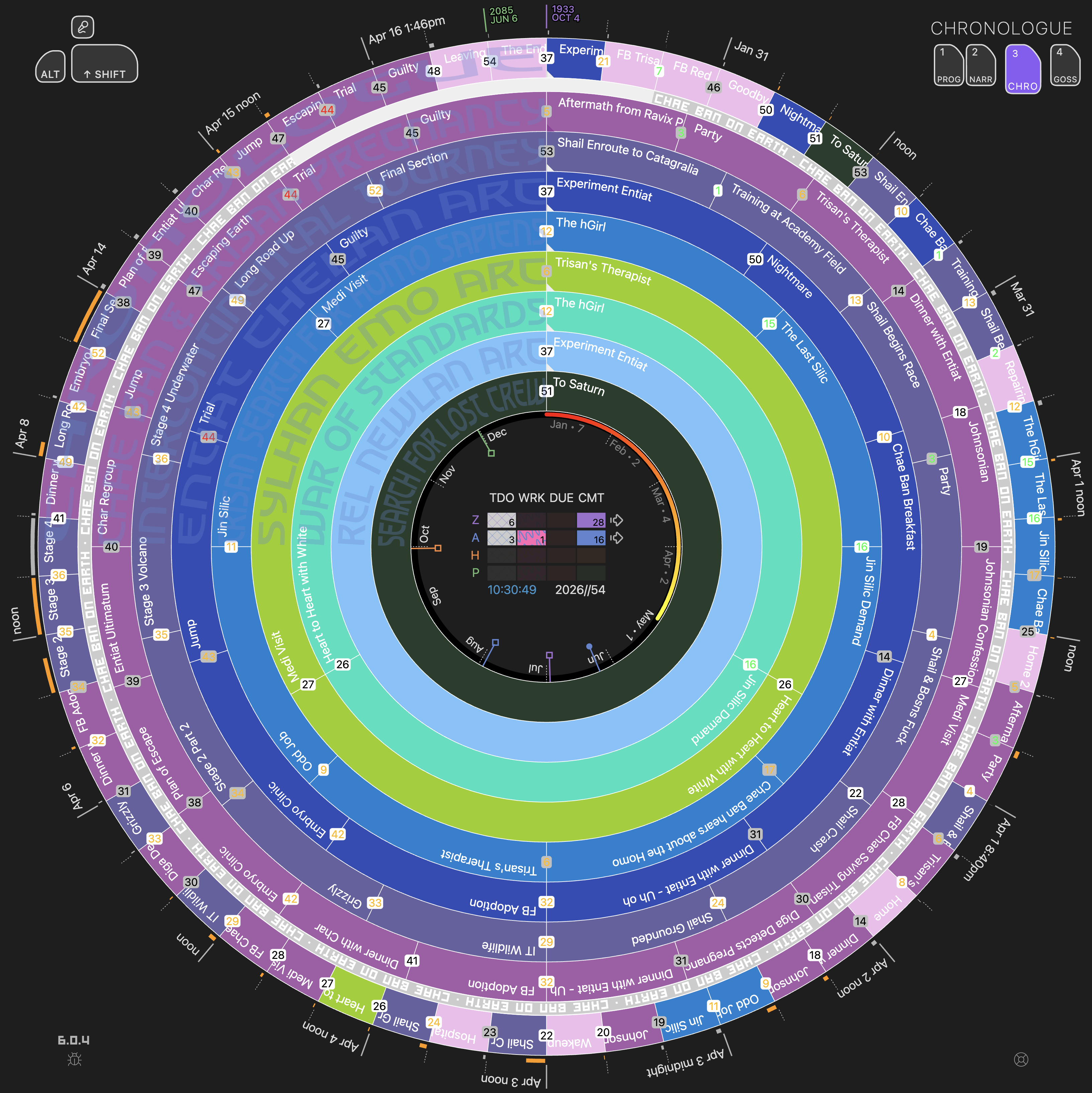
Radial Timeline View — shown in Chronologue mode
Open: Command palette → Radial timeline: Timeline open, or click the Radial Timeline logo icon in the ribbon.
Overview
Section titled “Overview”A radial manuscript workspace with four modes:
| Mode | Key | Focus |
|---|---|---|
| Progress | 1 |
Writing status and revision stages |
| Narrative | 2 |
Manuscript order and subplot structure |
| Chronologue | 3 |
Story-world chronology and duration |
| Gossamer | 4 |
Beat-level scoring and comparison |
What You Can Do
Section titled “What You Can Do”- write, add, or reorganize scenes
- drag a note from the file explorer onto the wheel to add it to the book; in Narrative or Progress, drop it on a scene to place it right after that scene (see Add a note to the book)
- switch between books or view an entire Saga from the title-bar book selector
- open a writing session from the title-bar count/session button
- use the timeline legend to read scene actions and mode-specific controls
- compare subplot balance and structure
- check chronology and elapsed time
- score beats and compare Gossamer traces
- review scene-level AI feedback via AI Pulse Triplet Analysis
Book Selector
Section titled “Book Selector”The tab title bar includes a book selector. Choose an individual Book Manager profile to focus the timeline on one manuscript, or choose Saga to view all configured books together in Narrative Mode.
See Narrative Mode for Saga behavior and limits.
In a narrow pane
Section titled “In a narrow pane”The title bar fits the pane you give it. When the right side needs room, the mode buttons slide left to make it. In a narrower pane the title bar icons (Timetable, Canvas create subplot map, commands, manuscript export, bug report, Help, and Settings) fold into one Timeline actions menu button, then the search field and book selector get shorter. Only in the narrowest panes do the inactive modes shrink to their number, such as 1 2 Narrative 3 4.
Getting Help
Section titled “Getting Help”Help in the title bar opens the Community help page: how-to answers, the Guide, private requests to the Radial Timeline team, and known issues, all in one place.
Bug Reports
Section titled “Bug Reports”The title bar bug icon opens the built-in bug report workflow. You can describe the issue, capture or attach a screenshot, and paste an image from the clipboard. Report a bug opens the GitHub bug form with your plugin version, Obsidian version, platform, and current view already filled in. If you do not have a GitHub account, use the email option in the same dialog.
Writing Session Control
Section titled “Writing Session Control”The title bar also includes the compact count/session button used for Sessions.
- Click it to open the Writing Session panel.
- Start an open-ended session or a countdown sprint.
- Pause, resume, save, stop, or discard the current session from the panel.
- If you have Desk Lamps, tick the friends who should see this session under Desk Lamps before you press Begin Session. While you write, the panel shows who your lamp is lit for.
- Use the settings icon in that panel to jump straight to Settings → Core → Sessions.
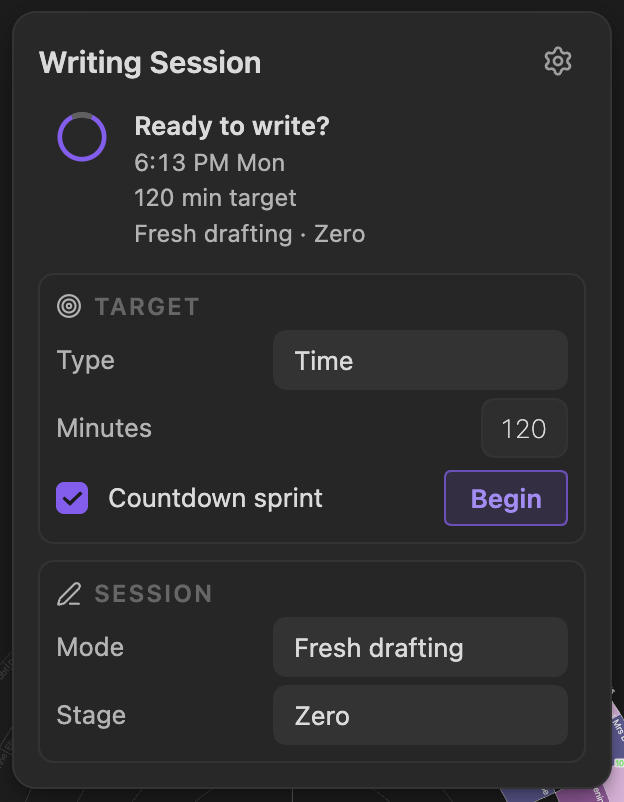
Writing Session panel — timer, daily goal context, and session controls
Community Mailbox
Section titled “Community Mailbox”On a vault connected to the Community, at any sharing level (Private included), a Mailbox button (a mail icon and the word Mailbox) sits just right of the writing-session control. It works like your account menu on the Community website, in the same colors:
- A gold number counts conversations with new replies (your requests the team has answered, plus your questions someone has replied to) and Desk Lamp invites waiting for you.
- Click it to open a menu like the website’s: Requests, New replies (while there are some; it opens your newest question with a reply), and Desk Lamp invites (while some wait; it opens My Share’s Desk Lamps section), each with its own count. Pick one to read or answer it on the Community; that clears its number the next time the plugin checks.
- Community sync shows when your book list last reached My Share and when the next sync runs. Click it to sync now. Your book list syncs each time Obsidian opens and every six hours while your vault stays open.
- The plugin checks about once an hour while a timeline is open, and again when you come back to Obsidian. It never marks anything as read.
- If a check fails, its icon dims and its tooltip says why.
The Mailbox does not appear on a vault that is not connected. To hide it on a connected vault, turn off Show community mailbox in Settings → Advanced.
Desk Lamps
Section titled “Desk Lamps”Once you have a Desk Lamp or an invite waiting, a ceiling-lamp icon sits just right of the Mailbox. Its number counts the friends at their desks, and clicking it lists each one with their city, the kind of writing, and how long they’ve been at it. See Desk Lamps for adding friends and lighting your own lamp for a session.
Timeline Legend
Section titled “Timeline Legend”The legend is a quick visual guide for the current mode.
- It explains basic scene actions such as Hover, Click, and Right click.
- It includes mode-specific help for Narrative, Progress, and Chronologue.
- The right-click guidance includes Add scene alongside status, stage, and Pulse actions.
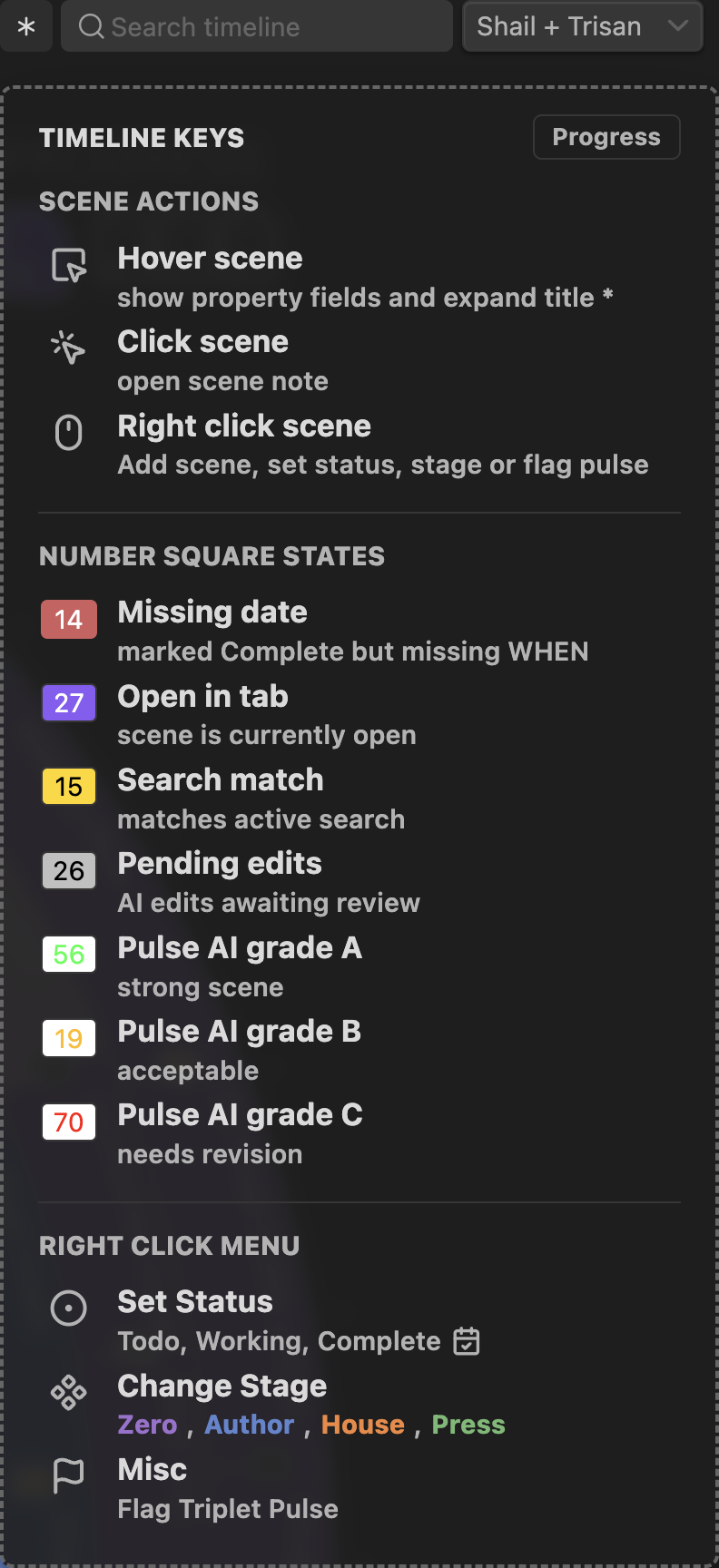
Timeline legend — scene actions and mode-specific controls
Timetable
Section titled “Timetable”The Timetable opens beside the wheel from its title-bar table button. It follows the active book or saga and links scene rows to the wheel’s hover highlight.
Headings set in Kalice, Claude Type, designed by Margot Lévêque.