
YAML Frontmatter
Radial Timeline reads scene, beat, and backdrop metadata from Obsidian properties at the top of each note. Start with the core properties and add fields as your project develops.
Time references
Section titled “Time references”The optional Time References list records other dates or periods mentioned within a scene. See Time references for the required fields, a quoted YAML example, and screenshots of the timeline and Timetable. The scene’s primary When stays unchanged.
Core Scene Scaffold
Section titled “Core Scene Scaffold”ID: scn_00000000 # Auto-generated stable scene referenceClass: Scene # Type: SceneAct: 1 # Act number within your configured act countWhen: # Optional story chronology date (YYYY-MM-DD, optionally 12:34pm; add BCE for dates before the common era)Duration: # How long the scene lasts (e.g., "45 seconds", "45s", "45sec", "2 hours", "3days")Part: # Optional part marker — `true` for numeral only, or a titleChapter: # Optional chapter marker for publishing and perimeter placardsSynopsis: # Concise present-tense snapshot for hovers/outlines (1-3 sentences)Summary: # Extended scene expansion (events, emotional turns, subtext, outcome)Pending Edits: # Notes for next revision (especially for zero draft mode)Subplot: Main Plot # Single subplot (or use array format below for multiple)Character: # Characters in the scene; the first name is the POV characterNarration: # Leave empty to follow the book's narration; see Narration KeywordsWords: # Optional word count/statisticsTotal Time: # Hours on this scene, added from writing sessions you approveRuntime: # Optional runtime estimate or overridePublish Stage: Zero # Progress stage (Zero/Author/House/Press)Status: Todo # Scene status (Todo/Working/Complete)Due: # Target completion date (YYYY-MM-DD). Marking a scene Complete from the wheel or the Timetable sets it to that dayPulse Update: # AI-generated scene pulse analysis flagSummary Update: # Summary scene refresh flagBook Designer and Note create generate the core scaffold above. ID is inserted automatically for stable scene citations, and the advanced properties editor can maintain the current core and advanced field order.
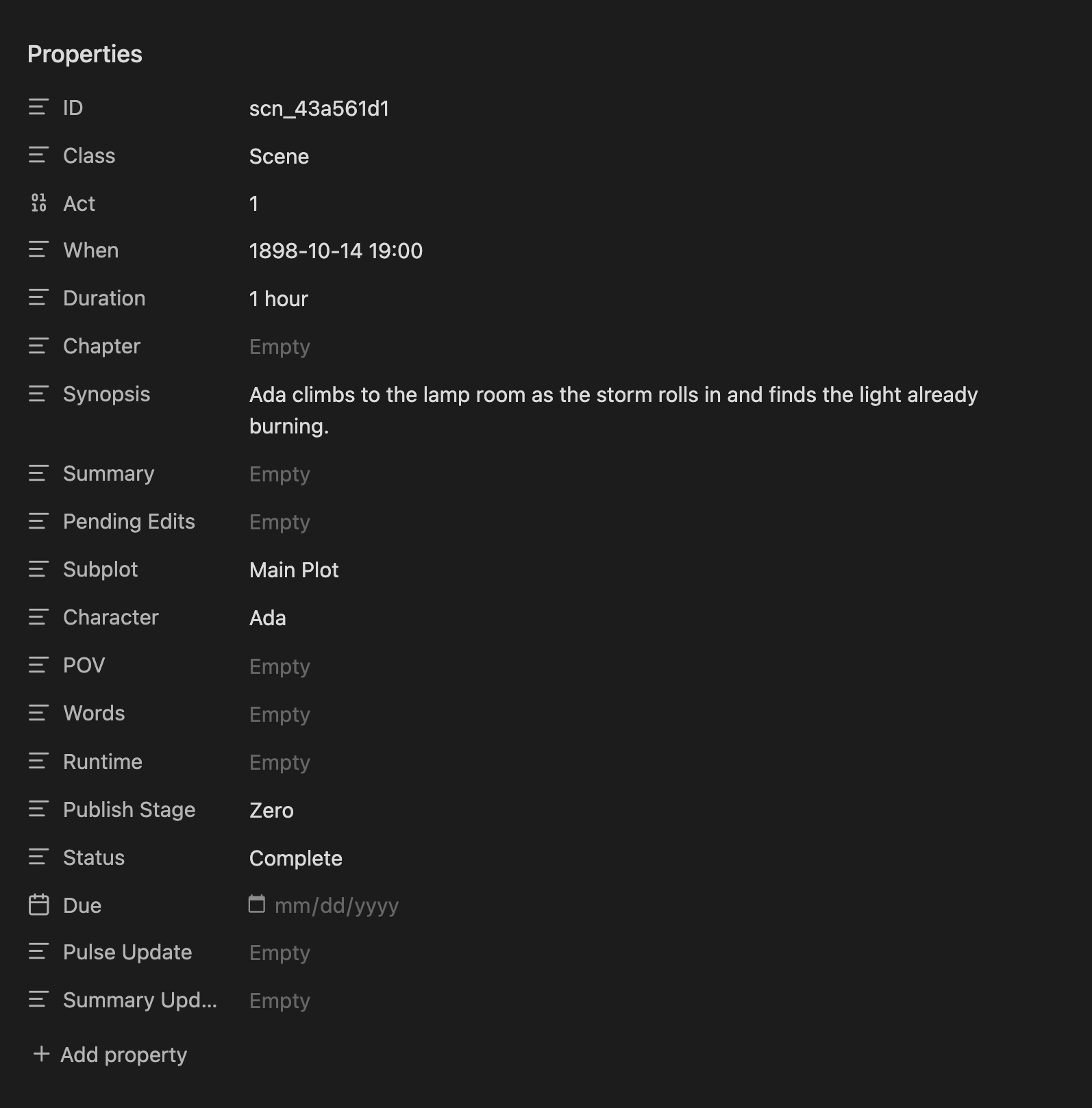
A scene’s core properties as Obsidian shows them at the top of the note
For multiple subplots or characters, use YAML list format:
Subplot: - Main Plot - Subplot 1Character: - "Protagonist" - "Mentor" - "Child One"Place: - "Castle" - "Forest" - "Planet Nine"Obsidian links are supported in properties. Use the double-bracket wikilink format inside quotes if you want a field to link to a note.
Narration Keywords
Section titled “Narration Keywords”Each book sets how it is narrated in its book details (Settings → Core → Books, the tag button on the book’s card). The POV character is always the first name in Character. A scene narrated differently from its book says so in its Narration property:
Character: - "Watson" - "Holmes"Narration: omni # This scene only: an omniscient narratorNarration: first— the first listed character gets a¹marker.Narration: second/Narration: you— insertsYou²ahead of the cast.Narration: third— the first listed character gets a³marker.Narration: omni— showsOmni³to signal an omniscient narrator.Narration: objective— showsNarrator°for camera-eye scenes.Narration: two,Narration: 4,Narration: count,Narration: all— marks that many names at the start ofCharacter, for a scene several characters carry, with the book’s narration marker.
Descriptions built from these words, such as third person limited or close third, work too. The scene properties check in Settings → Core lists any scene whose Narration holds something else, such as a character’s name, with its value, so you can open the scene and choose a narration or clear the field; until then the scene follows its book.
New scenes get an empty Narration property; a scene that follows its book leaves it empty, or without the property at all. Scenes written before Radial Timeline 8 may carry the field under its earlier name, POV. Radial Timeline reads it the same way until you apply Scene field POV is now Narration at the top of Settings → Core, which renames POV to Narration and keeps its value. See Narration.
Advanced Scene Properties
Section titled “Advanced Scene Properties”Advanced scene properties add optional fields for deeper workflows (Dramatica, custom analysis, and more). This profile is customizable.
ID: scn_00000000Class: SceneAct: 1When: 2085-01-01 1:30pmDuration: 6 hoursChapter:Synopsis: What happens in a few lines.Summary: The longer scene summary.Pending Edits:Subplot: - Subplot 1 - Subplot 2Character: - "Character 1"Place: - "Earth"Publish Stage: ZeroStatus: TodoDue:Pulse Update: NoSummary Update:Words:Runtime:Iteration: # Edit iteration count (deprecated: was "Revision")Type: # Optional scene role or classificationShift: # Optional value shift or polarity changeQuestions: # Analysis BlockReader Emotion:Internal: How do the characters change?Advanced Properties Editor
Section titled “Advanced Properties Editor”The advanced properties editor lets you tailor the advanced scene properties while keeping required base keys intact. Add, remove, or reorder optional fields to match your workflow.
- Open Settings → Core → Scene properties and choose Show advanced properties editor.
- Required base keys stay locked and auto-included in order.
- Optional keys can be drag-reordered, renamed, deleted, or added.
- Radial Timeline-managed maintenance only governs the core and current advanced scene-property fields.
- Scene-property maintenance preserves custom fields and fields from other plugins.
- Reordering keeps custom fields beside the managed property directly above them.
- Use the restore icon to revert to the shipped defaults.
Sketch Notes (YAML)
Section titled “Sketch Notes (YAML)”Class: Sketch keeps a planning note in the Timetable, off the wheel until you promote it to a scene. Write the sketch in the note body; Act, Subplot, and When can record its intended placement. The drawer edits these author-facing properties and the body directly.
Class: SketchAct: 1Subplot:When:Use Promote to scene when it is ready; existing values and prose are preserved. See Promoting notes.
A sketch created from an outline document records where it came from, a link you see in Properties and Backlinks:
Source: "[[Story Outline]]" # only for sketches created from an outline documentWhere a sketch sits among the scenes, the scene it follows and its order there, is not a property. Radial Timeline keeps it in Radial Timeline/Sketch Placement/placements.json, which syncs with your vault, and follows the sketch when you rename or move it. Dragging a sketch in the Timetable, Move up and Move down when converting Canvas cards, and placing ideas from an outline all set it there. A sketch with no place after a scene sits at the end of its act. See Place scenes and sketches from the table.
Earlier versions wrote this as Place after scene and Sketch order in the sketch note. The first time Radial Timeline 8 opens your vault, it copies those values into the placement file, so every sketch keeps its place. The lines stay in your notes as you have them, and Radial Timeline no longer reads them after that copy; you can delete them whenever you like.
Outline Notes (YAML)
Section titled “Outline Notes (YAML)”Class: Outline marks a planning document in a book folder, such as a chapter outline or a synopsis. The Timetable’s Outline layout lists it under Outline documents without attaching it by hand, and Create sketches from this document turns its headings into sketches. See Outline.
Class: OutlineImages for Timetable Panels
Section titled “Images for Timetable Panels”Panels and Canvas cards show the pictures of a scene’s people and places. A picture belongs to the person or place, never to the scene, and a card finds it this way:
- The note’s own
Imageproperty, on a character note or a Place note, such asImage: Elizabeth Bennet.png. - Otherwise, a picture named after the character or place, such as
Elizabeth Bennet.webp, found anywhere in the vault. Numbered copies such asElizabeth Bennet 2.webpare further portraits; each scene keeps the one it was given.
| Property | On | Shows |
|---|---|---|
Image |
a character note | that character’s portrait, instead of the picture found by name |
Image |
a Place note | that place, for the first place in a scene’s Place list, instead of the picture found by name |
Each value names an image in the vault, such as Elizabeth Bennet.png or "[[Longbourn.webp]]". PNG, JPEG, GIF, WebP and AVIF work.
Scenes have no picture properties. To change what one card shows, use the card’s own picture menu (Card images): choose a character, step to the Next portrait, Choose portrait…, Choose place image…, or Return to automatic images. The top of that menu says where each picture comes from. See Panels.
Beat Notes (YAML)
Section titled “Beat Notes (YAML)”ID: # Auto-inserted unique idClass: Beat # Formerly Plot, DeprecatedBeat Model: Save The CatAct: 1Purpose: Why this beat exists in the structure (1-2 sentences, avoid retelling scene events).In This Book: # What this beat is in your novel; leads the beat hover when filledRange: 0-20Chapter:Gossamer1: 12 # First trace (oldest) - Up to 30 saved tracesGossamer1 Justification:Gossamer2: 21 # Second trace (most recent in this example)Gossamer2 Justification:Beat order follows
Actand the filename prefix (sceneInteger.minor, for example7.01).
In This Book says what a beat is in your novel, where Purpose says what the beat does in any story. When it’s filled, the beat hover opens with your line and shows the generic Purpose beneath it in smaller, dimmer text, and timeline search finds the beat by its words. Unfilled beats show Purpose alone. In Narrative mode, hold Shift to swap the beat labels around the outer ring to their In This Book names (a long line is cut short on the ring; the hover keeps all of it). New beat notes include the field; to add it to existing beat notes, run Insert missing fields from the beat properties audit in Settings → Core → Story beats system.
Beat notes have their own Beat properties editor in Settings → Core → Story beats system. Use it to add custom keys and choose which fields appear in beat hovers. Beat properties are stored per beat system.
Backdrop Notes (YAML)
Section titled “Backdrop Notes (YAML)”Class: Backdrop # Used for special context events that move the plot. Appears as a dedicated ring in Chronologue mode. See also micro-backdrop rings for lighter-weight context.When: # Start Date time (YYYY-MM-DD HH:MM)End: # End Date time (YYYY-MM-DD HH:MM)Context: Static world context this backdrop represents (no scene-level unfolding).Backdrop notes can be extended using the Backdrop properties editor in Settings.
YAML Managers in Settings
Section titled “YAML Managers in Settings”- Advanced properties editor: In Settings → Core → Scene properties, choose Show advanced properties editor to customize advanced scene properties and hover metadata.
- Beat properties editor: Customize beat note fields and beat hover metadata.
- Remap frontmatter field keys: In Settings -> Advanced -> Configuration, map your existing keys to Radial Timeline keys without rewriting your files.
See Scene properties, Configuration, and Story beats system for configuration details.
Remap Frontmatter Field Keys
Section titled “Remap Frontmatter Field Keys”If your vault already uses different property names for scene notes, you can map them to Radial Timeline’s system keys in Settings -> Advanced -> Configuration with Remap frontmatter field keys.
Example: If you use Timeline: 2024-01-01 instead of When: 2024-01-01, create a mapping from Timeline to When.
Backwards Compatibility
Section titled “Backwards Compatibility”The plugin also recognizes these legacy field names:
| Current Name | Legacy Names (still work) |
|---|---|
Iteration: |
Revision:, Iterations: |
Purpose: |
Description: |
Context: |
Synopsis: (Backdrop only) |
Use fixed-width decimal minors for beat filenames (1.01, 1.02, …).
Existing notes with old field names will continue to work. Only new notes created from the built-in property profiles will use the current field names.
Headings set in Kalice, Claude Type, designed by Margot Lévêque.