
Progress Mode
Keyboard Shortcut: 1
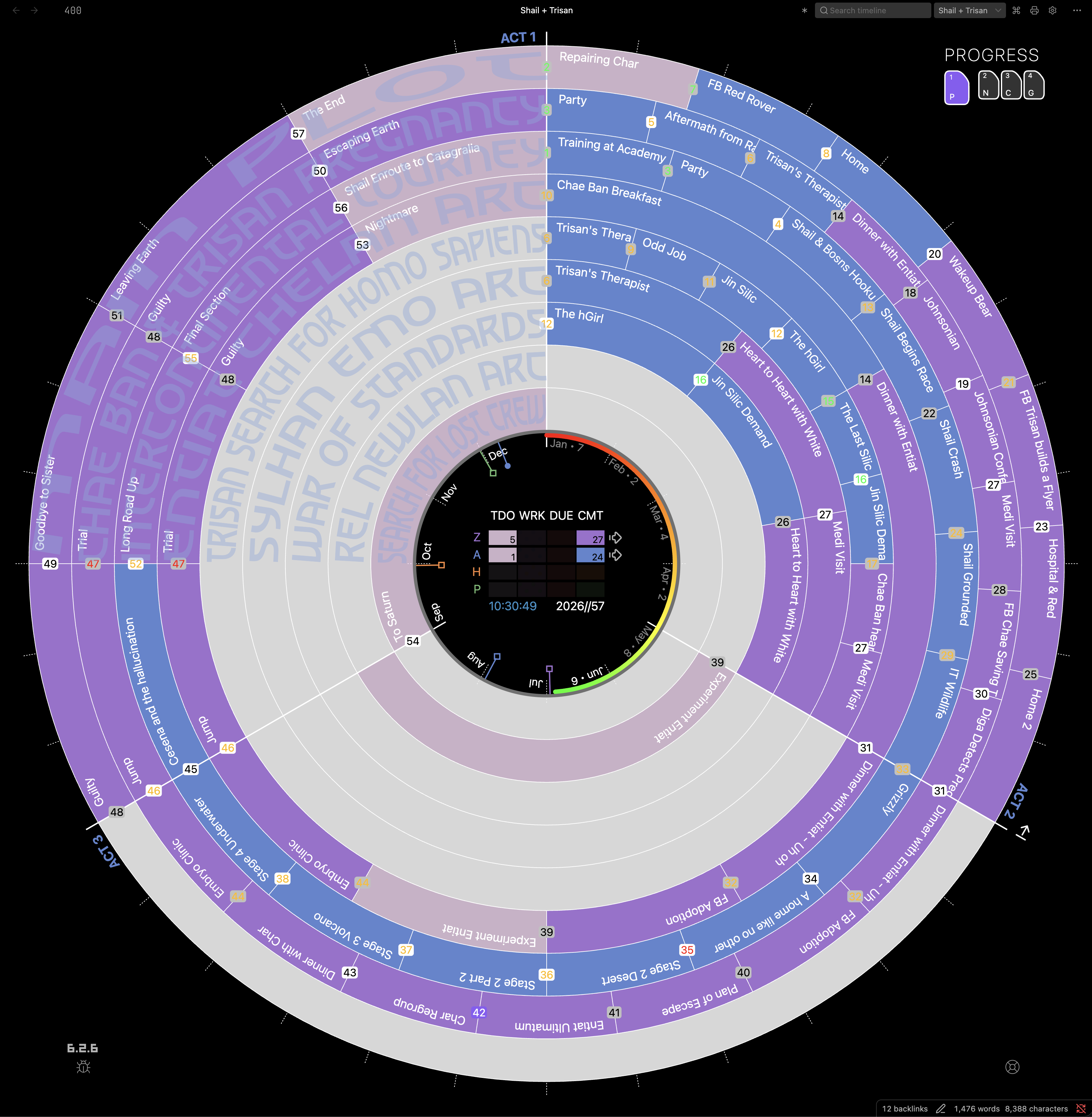
Progress Mode gives each subplot a ring and colors scenes by writing status and revision stage.
Key Features
Section titled “Key Features”- Thread Separation: Every subplot renders in its own ring, with the main plot emphasized and other threads muted, so each arc is easy to follow.
- Act Structure: Like Narrative Mode, scenes are distributed across your configured act count (default 3). Each act spans an equal segment of the 360° circle.
Status & Progress Stage
Section titled “Status & Progress Stage”Scene colors show your workflow status:
-
Author Status:
- Todo: Solid light pink.
- Working: Pink, with an optional Hero Patterns plaid motif overlaid on top. Choose a Working pattern in Settings → Core, or add a custom pattern from Hero Patterns.
- Overdue: Red.
- Complete: Inherits the color of the scene Progress Stage.
-
Progress Stage Colors:
- Once a scene is “Complete”, it displays the color of its current stage (Zero Draft, Author’s Draft, House Edit, Press Ready).
- These colors can be customized in Progress stage colors.
Together, status and progress stage answer two questions:
- Status: what is happening with this scene right now?
- Progress stage: which draft or editing stage has this scene reached?
Together they turn the radial view into a project-management dashboard, highlighting what needs to be written, what is overdue, and what is ready for the next stage of editing.
Zero Draft Mode
Section titled “Zero Draft Mode”Zero Draft Mode opens Pending Edits when you click a scene with Publish Stage = Zero and Status = Complete. Capture revision ideas there while you finish the first draft. The scene’s current Pending Edits show above the field; what you type is added after them when you click Save, so earlier ideas are kept. Enable it in Settings → Core.
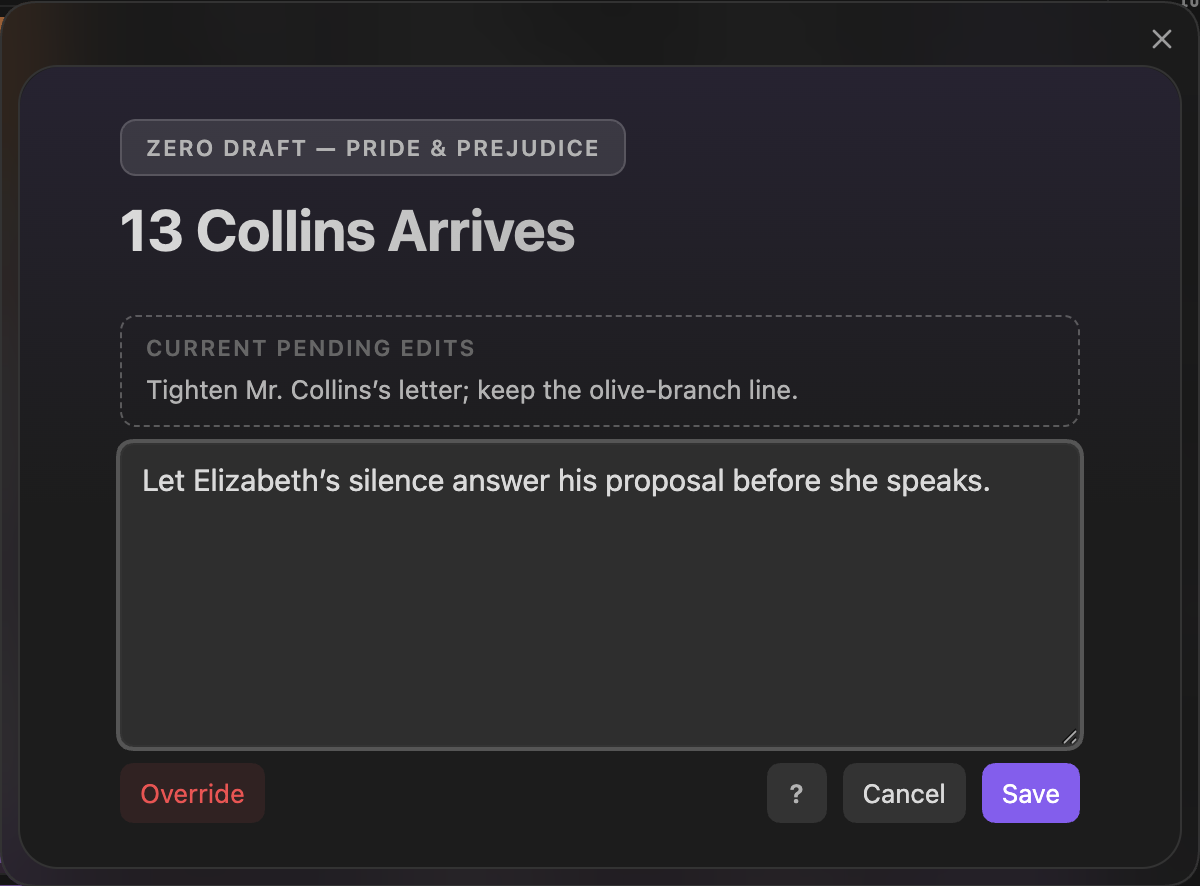
Zero Draft Mode — capture ideas for the next revision
Headings set in Kalice, Claude Type, designed by Margot Lévêque.