
Inquiry
Inquiry analyzes manuscript and worldbuilding material across a book or saga. Ask structured questions, review evidence and scene citations, and save findings as briefings.
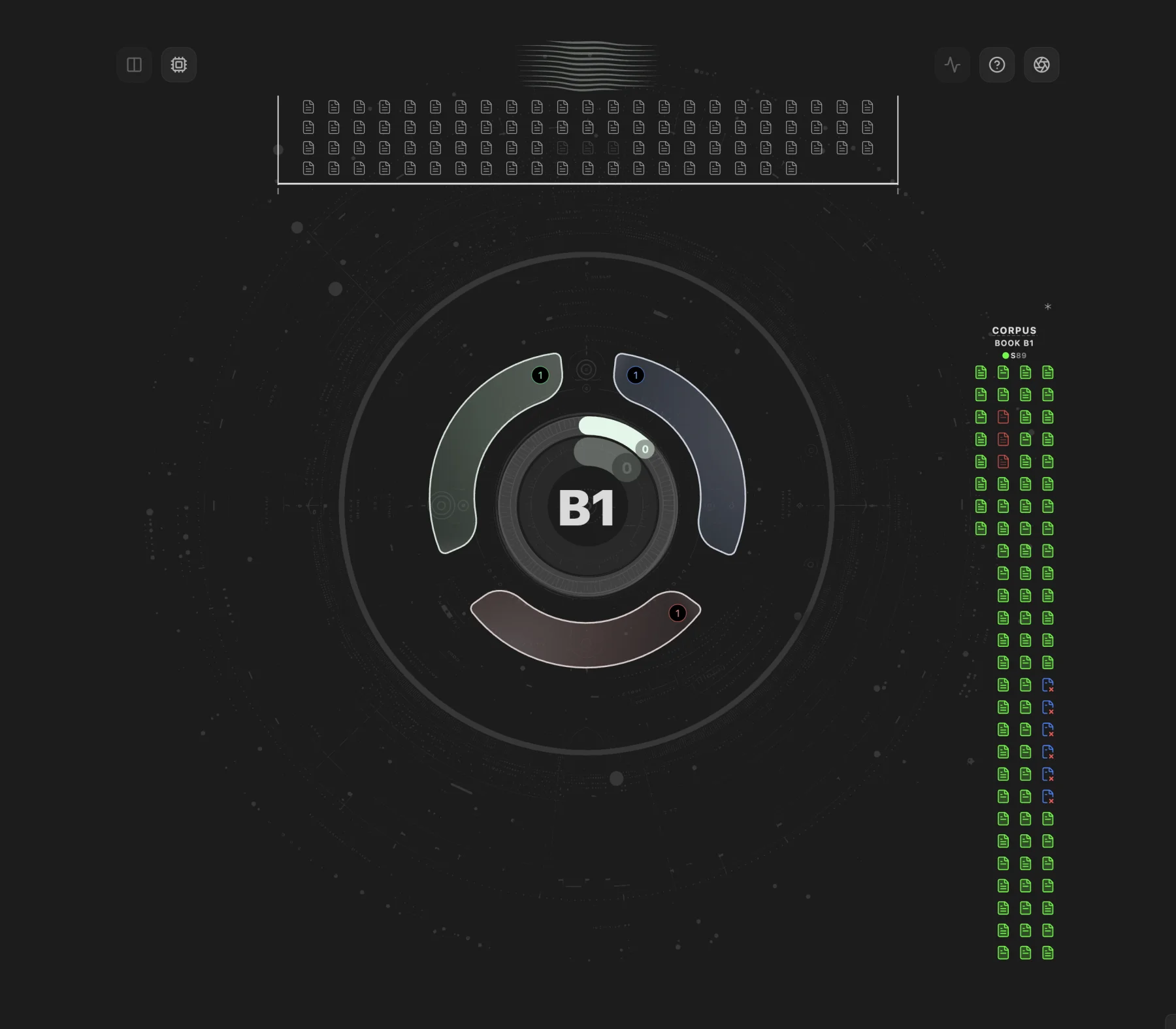
Inquiry view — the glyph, the minimap of scene pages, and the corpus strip (The Odyssey Story Vault)
Overview
Section titled “Overview”Inquiry sends your selected manuscript material to your configured cloud provider or Local LLM endpoint and asks structured questions organized into three narrative zones. The AI returns findings with headlines, recommended actions, evidence quotes, and scene citations that are visualized in the Inquiry glyph.
Commands:
Inquiry open— Opens the Inquiry view
Settings: Inquiry settings
Inquiry opens whether or not AI is turned on. With AI off you can still read every saved session and briefing, including the ones in the Story Vaults. To run a new question, turn on Settings → AI → Enable AI LLM features and set up a provider.
Key Concepts
Section titled “Key Concepts”Inquiry organizes questions into three narrative zones that correspond to the structural arc of your story:
| Zone | Focus | Examples |
|---|---|---|
| Setup | Foundations and introductions | Character introductions, world-building, initial stakes |
| Pressure | Escalation and conflict | Rising tension, subplot intersections, pacing |
| Payoff | Resolution and conclusion | Loose ends, thematic resonance, climactic impact |
Lenses
Section titled “Lenses”Each Inquiry run produces two complementary analyses:
- Flow — Evaluates narrative momentum: pacing, tension arcs, scene-to-scene energy, and structural rhythm.
- Depth — Evaluates thematic substance: character development, motif recurrence, emotional resonance, and subtext.
The Inquiry glyph visualizes both scores as concentric rings, giving you a snapshot of your story’s structural health.
- Book — Analyzes scenes within the active book folder (single manuscript).
- Saga (Σ) — Analyzes the book profiles included in Inquiry sources for series continuity checks.
The Inquiry Glyph
Section titled “The Inquiry Glyph”The visual interface centers on a radial glyph:
- Flow ring (outer) — Represents narrative momentum score (0–1).
- Depth ring (inner) — Represents thematic depth score (0–1).
- Zone segments — Three segments (Setup, Pressure, Payoff) around the glyph show per-zone health.
- Minimap — Scene citations from findings are highlighted, showing where issues cluster in your manuscript.
Click zone segments or findings to drill into specific analysis results.
Minimap
Section titled “Minimap”The Minimap gives you a compact view of where findings land in the scanned corpus. It draws each scene as a small page, the same page icon the corpus strip uses, and helps you see clustering, sparse coverage, and the relationship between current findings and the underlying manuscript.
Use the Minimap to:
- spot where issues concentrate
- jump from a finding back to source material
- compare the currently scanned corpus against the active result
Corpus Manager
Section titled “Corpus Manager”Corpus Manager is the in-view scope manager for Inquiry. It lets you control which material participates in the current run and apply corpus overrides without leaving the view.
Use Corpus Manager to:
- switch between Book and Saga scope
- apply in-view corpus overrides
- narrow the active material before a single question or Omnibus run
Any Corpus Manager overrides applied in the view affect the current Inquiry session and are respected by Omnibus runs.
Reading the corpus
Section titled “Reading the corpus”The corpus strip at the right of the view draws every note in the corpus as a page. One look tells you how each scene is sent, how far along it is, and how much material it holds.
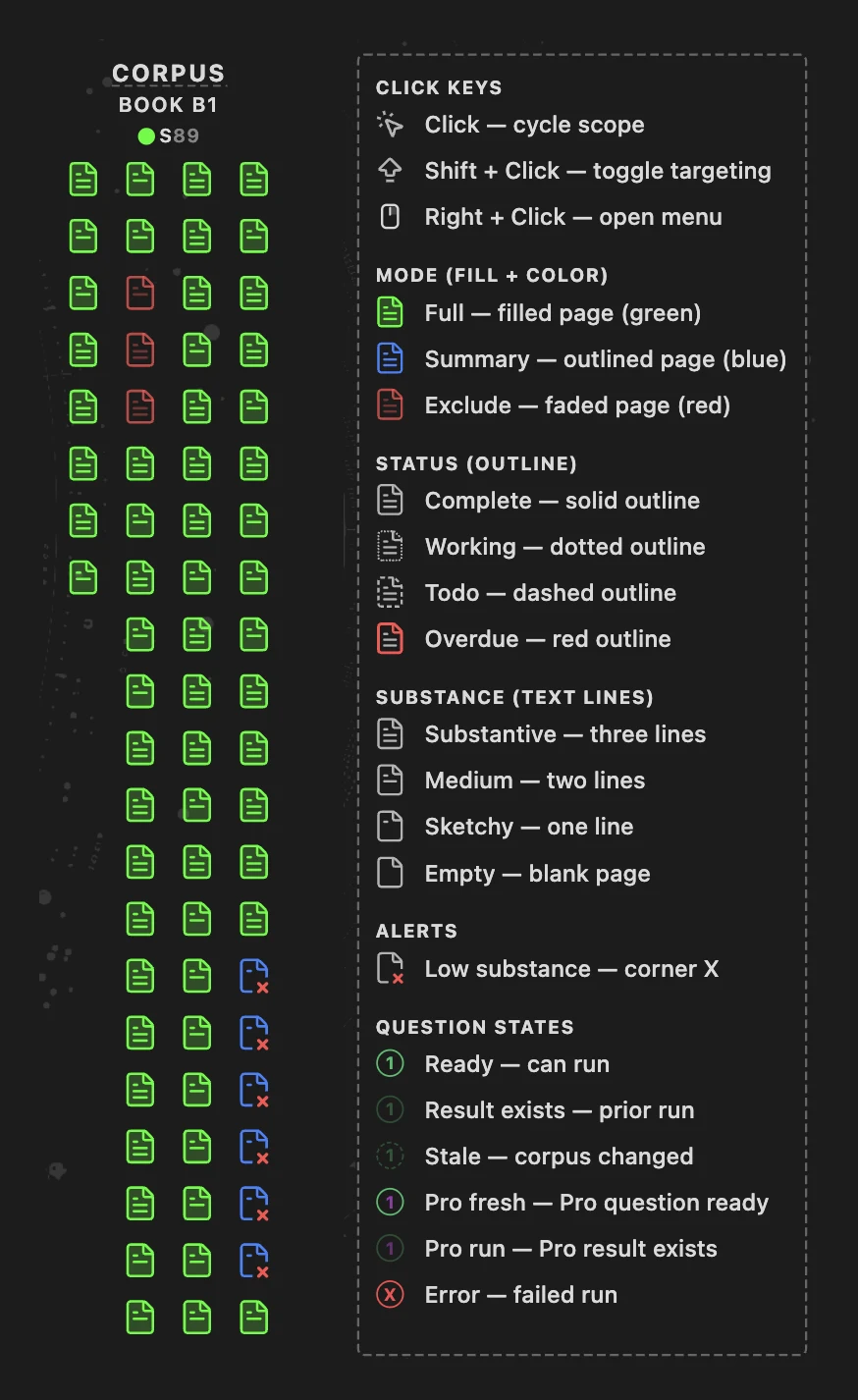
The corpus strip and its legend. Hover the asterisk (*) above the strip to open the legend.
| What you see | What it means |
|---|---|
| Fill and color | The material mode. Full is a filled green page, Summary an outlined blue page, Exclude a faded red page. |
| Outline | The scene’s status. Complete is solid, Working dotted, Todo dashed, Overdue red. |
| Text lines | How much material the note holds: three lines for Substantive, two for Medium, one for Sketchy, a blank page for Empty. The tiers follow your CC thresholds. |
| Corner X | Low substance: the scene’s material is Sketchy or Empty. In Summary mode it measures the Summary, so a scene with a short summary shows the X even when its prose is long. |
| Accent outline and filled corner fold | A target scene. Inquiry treats target scenes as the main subject of the question. |
Click keys
- Click a page to cycle its mode for this session: Full → Exclude → Summary.
- Shift + Click toggles targeting.
- Right-click opens the page’s menu.
The legend also explains the question states on the glyph: ready to run, a saved result, stale (the corpus changed since that run), signature questions, and a failed run.
AI Engine Popover
Section titled “AI Engine Popover”The AI Engine Popover shows the current Inquiry engine context for the active run.
Use it to check:
- which AI engine is currently resolved
- readiness and run constraints
- request-size and corpus context
- whether you need to open Settings → AI before running
Inquiry works with all supported AI providers, including Anthropic, OpenAI, Gemini, and Local LLM configurations.
Running an Inquiry
Section titled “Running an Inquiry”Single Question
Section titled “Single Question”- Open the Inquiry view (
Open Inquirycommand or click the Inquiry ribbon icon). - Select your scope (Book or Saga).
- Hover a question inside the desired zone (Setup, Pressure, or Payoff) to preview the prompt and payload details, including the token estimate.
- Click the question’s number badge to run that single question against your selected AI provider.
- Review findings in the results panel — each finding includes a headline, supporting bullets, a recommended action, and scene citations.
Omnibus Pass (in testing — not yet released)
Section titled “Omnibus Pass (in testing — not yet released)”The Omnibus Pass runs enabled questions across all three zones via the Inquiry omnibus command. It is undergoing testing and is not released yet, so the command does not appear in release builds.
Corpus overrides: Any Corpus Manager overrides set in the Inquiry view are applied to the Omnibus run. Otherwise, the run uses the Inquiry Settings corpus configuration.
Corpus & Material Modes
Section titled “Corpus & Material Modes”Inquiry builds a “corpus” from your manuscript files before sending them to the AI. You can control what each YAML class contributes:
| Material Mode | What Is Sent | Best For |
|---|---|---|
| Full | Note prose after frontmatter, comments, and imported editorial review blocks are removed | Scenes you want deep analysis on |
| Summary | Summary field only |
Lower token usage while preserving high-level context |
| Exclude | Nothing; the note is left out | Reference notes, worldbuilding docs you want to skip |
Configure per-class material modes in Inquiry sources.
Inquiry uses the selected notes and their chosen story fields. A selected note needs readable material in its chosen mode; a missing note, missing Summary, or empty body prompts you to resolve the selection before running.
Corpus Content (CC) Thresholds
Section titled “Corpus Content (CC) Thresholds”The Corpus system classifies notes by word count to help you spot thin content:
| Tier | Default Range |
|---|---|
| Empty | ≤ 10 words |
| Sketchy | 11–299 words |
| Medium | 300–999 words |
| Substantive | ≥ 1,000 words |
Notes that remain Empty or Sketchy are marked automatically in the Corpus view. Adjust thresholds in Corpus (CC).
Findings
Section titled “Findings”Each Inquiry result contains findings — specific observations the AI identified:
| Finding Kind | Description |
|---|---|
| Loose end | An element introduced but never resolved |
| Continuity | A consistency issue between scenes |
| Escalation | A tension or stakes progression issue |
| Conflict | A structural or thematic conflict |
| Unclear | An ambiguous element needing clarification |
| Strength | Something that is working well |
| Thread / Arc / Payoff / Structure | Thread tracking, character arcs, payoff delivery, and structural observations |
Each finding includes:
- Headline and supporting bullets
- Recommended action
- Evidence quote from the source material
- Scene citations linking back to specific notes
Briefing Manager
Section titled “Briefing Manager”Briefing Manager is the Inquiry popover for recent briefing sessions and related actions.
Use Briefing Manager to:
- reopen recent Inquiry sessions
- clear or reset corpus-related state
- purge Inquiry-generated action notes when needed
- review saved briefing history tied to the current view context
Briefings
Section titled “Briefings”Inquiry can save results as markdown briefings for later review. Briefings are stored in Radial Timeline/Inquiry/Briefing.
Briefing Articles
Section titled “Briefing Articles”Inquiry can also produce Briefing Articles — HTML-formatted presentation output for reading or sharing in a more polished layout than the markdown briefing.
To read a Briefing Article while you work, choose Open beside Inquiry in the article’s header. The article moves into a side panel next to Inquiry and stays on that briefing as you explore other sessions; Open full briefing brings it back to the full-size view.
Action Notes
Section titled “Action Notes”Inquiry can write findings directly into your scene frontmatter:
- Enable: Toggle Auto-populate Pending Edits in Inquiry settings.
- Target field: Findings are appended to the
Pending EditsYAML field. - Purge: Use the purge function in the Inquiry view to remove all Inquiry-generated action notes from scenes.
Prompts
Section titled “Prompts”Each zone ships with built-in questions, core and signature, and you can add your own. Choose Standard or Focused in a question’s menu to select its prompt form. Question counts, custom questions, and ordering are set in Inquiry prompts.
Sources & Material Rules
Section titled “Sources & Material Rules”Inquiry reads the books, YAML classes, and supporting folders you choose, with Default, Light, and Deep presets for the trade-off between depth and token use. Configure them in Inquiry sources.
- Start with Book scope and a single question.
- Use Summary material mode for large manuscripts to reduce token usage while maintaining context.
- Review the token estimate indicator before running — amber and red tiers indicate high token consumption.
- Combine Inquiry findings with AI Pulse Triplet Analysis for both macro and micro-level feedback.
- Inquiry works best when you calibrate scope, corpus, and prompt count before running larger passes.
Troubleshooting
Section titled “Troubleshooting”If the Inquiry view looks disabled or won’t run, work down this list:
- No book selected yet. Inquiry scopes to the active book, so opening it in a fresh vault — before the plugin knows where your manuscript lives — leaves it with nothing to scan. Step 1 is always: point the plugin at your book in Settings → Core → Books (Book Manager). In a downloaded Story Vault, skip the settings trip entirely: open the Welcome screen and click Open the sample vault — it detects the packaged book and drops you straight into the timeline.
- AI toggle. Inquiry opens with AI off, and saved sessions stay readable. To run a new question, turn on Settings → AI → Enable AI LLM features.
- Provider setup. Add a cloud provider key or configure and validate a Local LLM under Settings → AI to run new inquiries. Saved briefings and session history remain browsable while you set up a provider, including in the Story Vaults.
- The selected model isn’t Inquiry-eligible. Not every provider/model can run Inquiry — it needs structured output and a large context. Open the AI Engine popover and check the readiness strip; if it shows blocked, it names the reason. Local models can qualify (the validation card in Settings → AI shows an “Inquiry eligible” badge), but smaller local models may not.
- Empty corpus. If the scanned corpus finds no scenes, check Sources & Material Rules and the Corpus Manager — the scan folder must contain your scene notes, and the class scope must include them.
- Costs look wrong mid-run (Omnibus Pass, in testing — not yet released). The Omnibus panel shows live cost and includes a cache-health kill-switch; if cached-input pricing misbehaves, disable caching there and re-run.
Headings set in Kalice, Claude Type, designed by Margot Lévêque.